
Want to create better images with AI? In this guide, you’ll learn how to use ChatGPT Image 2.5, explore what ChatGPT Image 2.5 can do, and discover how to write effective prompts with a ChatGPT photo prompt generator. From realistic photos and creative artwork to precise image edits, these tips and prompt examples will help you get better results with less trial and error.
Part 1. What Is ChatGPT Image 2.5?
GPT Image 2.5 is the general name for OpenAI’s image generation and editing capabilities released in September 2026. It allows you to create images in a wide range of styles through natural-language instructions. OpenAI refers to the ChatGPT experience as ChatGPT Images 2.5 and offers two API models: GPT-Image-2.5 Flare for fast generation, and GPT-Image-2.5 Sunburst for generation and editing tasks that require precise control.
GPT Image 2.5 Flare vs Sunburst: What’s The Difference?
GPT Image 2.5 Flare and GPT Image 2.5 Sunburst are two API models designed for different image-generation workflows. Both support text and image inputs, image generation and editing, and the same range of quality settings. The main difference is the balance between speed and image quality/precision.
| Feature | GPT Image 2.5 Flare | GPT Image 2.5 Sunburst |
|---|---|---|
| Primary focus | Fast, high-quality generation | Maximum quality and editing precision |
| Speed | Faster | Longer generation time |
| Image quality | High | Higher |
| Editing | Precise | More precise for demanding workflows |
| Best for | Everyday images, social content, rapid generation | Detailed creative work, polished edits, production-ready imagery |
| OpenAI positioning | Default choice for most applications | Most capable GPT Image 2.5 model |
Part 2. How to Use ChatGPT Image 2.5
Creating images with ChatGPT Image 2.5 is straightforward. You can start with a simple text prompt and then refine the generated image with follow-up instructions.
Step 1. Open ChatGPT Images
Open ChatGPT and select the Images feature to start creating an image.
Step 2. Write a Clear Prompt
Describe what you want to create, including the subject, setting, style, composition, and lighting. For example:
- Create a photorealistic portrait of a woman walking through a Paris street at golden hour, soft natural lighting, cinematic composition, 35mm film photography style.
Step 3. Generate Your Image
Submit your prompt and let ChatGPT create the image. More specific descriptions can help communicate your intended visual details.
Step 4. Refine the Result
If the first result isn't exactly what you want, use follow-up prompts to make targeted changes. For example:
- Keep the same character and composition, but change the outfit to a red coat and make the background slightly brighter.
Step 5. Save Your Image
Once you're satisfied with the result, you can save the generated image for your creative project, social media content, or other uses.
Step 6. Generate Your Image
Submit your prompt and let ChatGPT create the image. More specific descriptions can help communicate your intended visual details.
Step 7. Refine the Result
If the first result isn't exactly what you want, use follow-up prompts to make targeted changes. For example:
- Keep the same character and composition, but change the outfit to a red coat and make the background slightly brighter.
Step 8. Save Your Image
Once you're satisfied with the result, you can save the generated image for your creative project, social media content, or other uses.
Part 3. GPT Image 2.5 vs GPT Image 2:Is It Worth Upgrading?
OpenAI launched GPT Image 2.5 on September 8, 2026, bringing improvements across image quality, editing precision, and generation speed. It delivers sharper details, more natural lighting and shadows, and richer textures, while doing a better job of preserving key features from reference images and supporting more reliable multi-turn editing. Compared with Image 2.0, generation latency has been reduced by up to 50%.
GPT Image 2.5 vs. GPT Image 2: Key Differences
For API users, GPT Image 2.5 is available in two model variants: GPT-Image-2.5 Flare, optimized for fast, everyday image generation, and GPT-Image-2.5 Sunburst, designed for more sophisticated creative and editing workflows that require greater precision.
| Feature | GPT Image 2.5 | GPT Image 2 |
|---|---|---|
| Image quality | Sharper details and richer textures | High-quality image generation |
| Editing | More precise edits and better multi-turn consistency | Image editing supported |
| Reference images | Better preservation of subjects and details | Supported |
| Generation speed | Up to 50% lower latency, according to OpenAI | — |
| Lighting & textures | More natural lighting and richer textures | Strong |
| API models | Flare and Sunburst | GPT-Image-2 |
| ChatGPT features | Templates, Sketch, comments, and prompt sharing | Image generation and editing |
GPT Image 2.5 vs. GPT Image 2: Which One Should You Use?
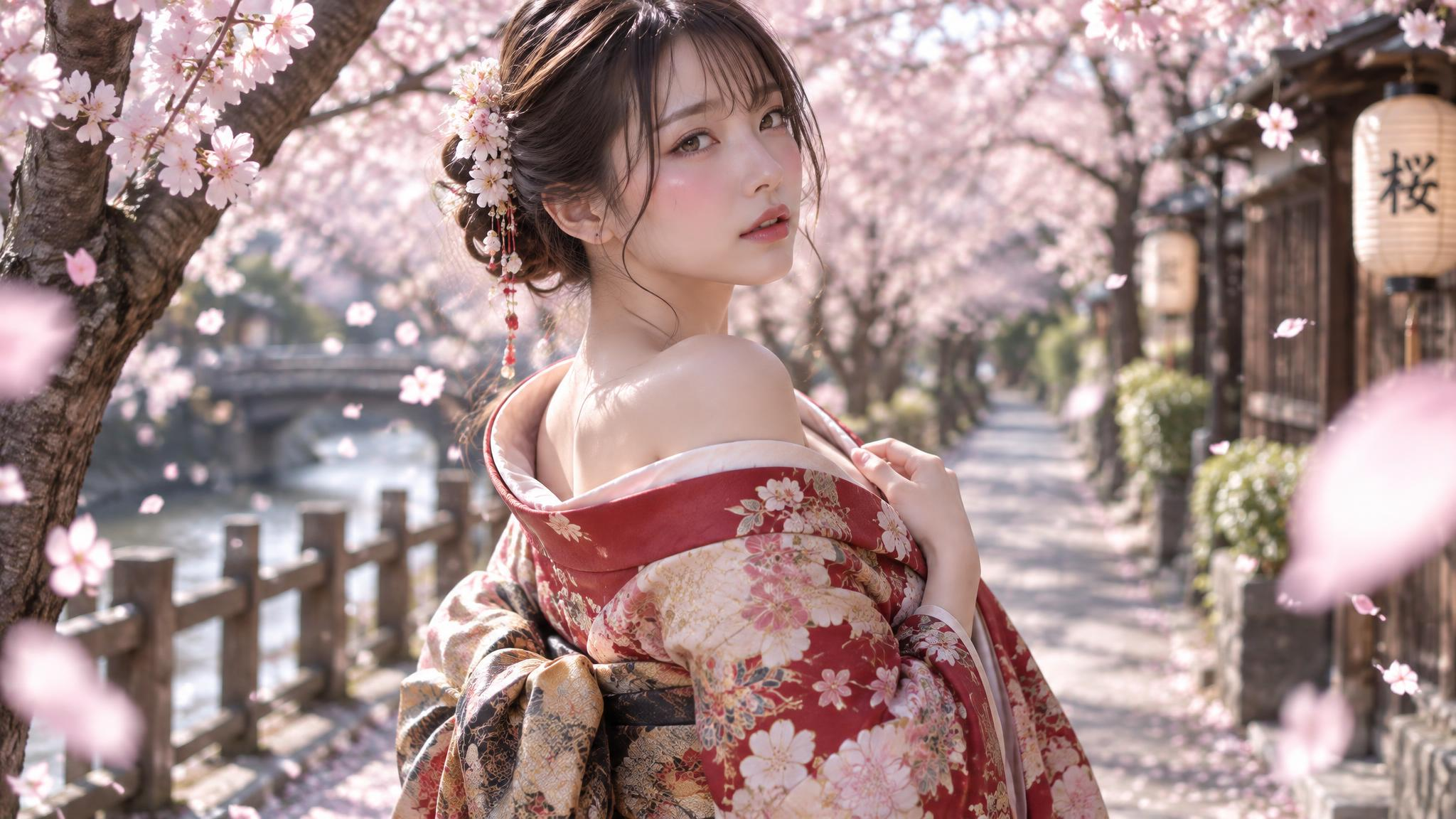
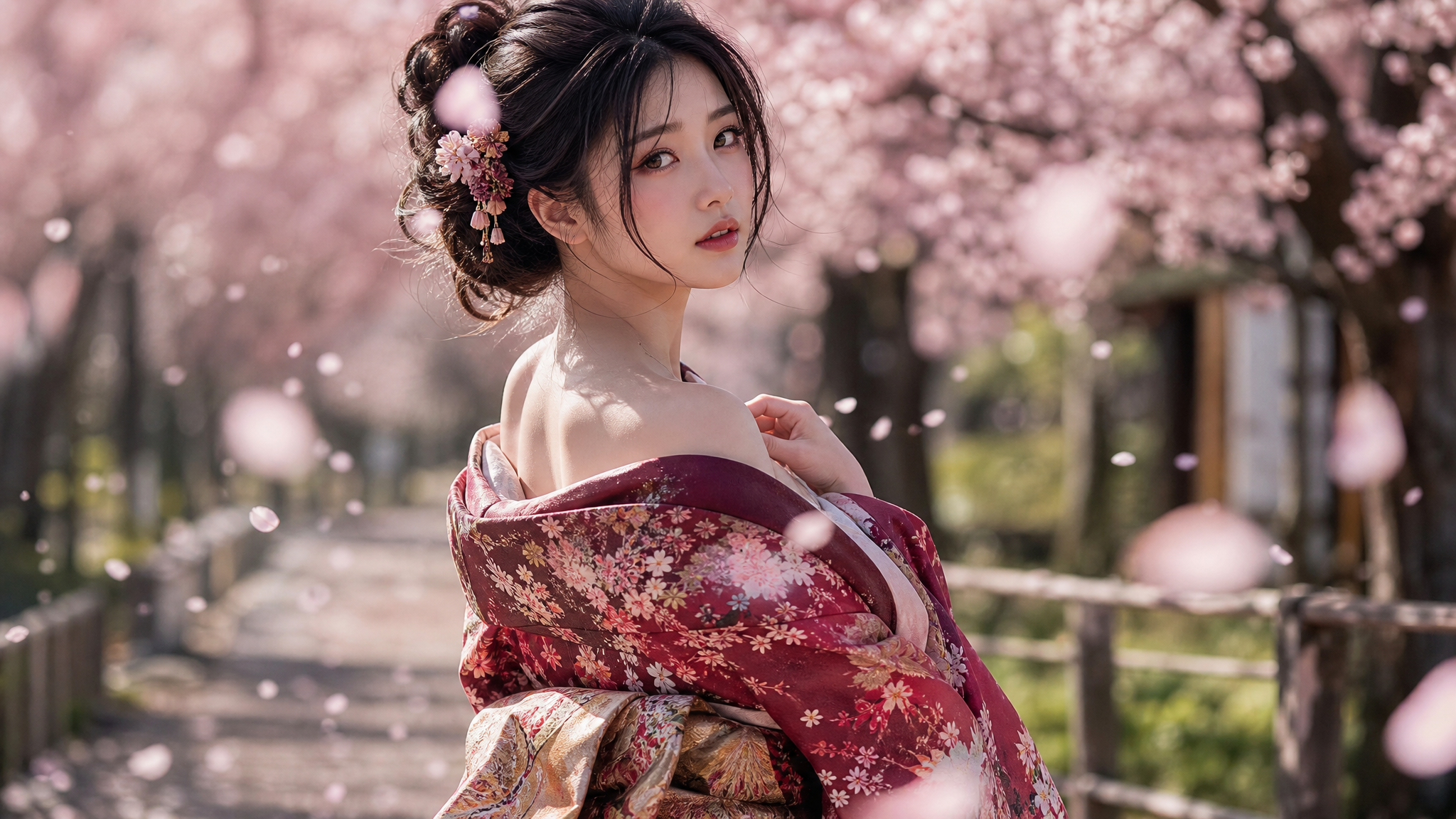
For most workflows, the choice depends on what you prioritize:
- GPT Image 2.5 Flare is the right choice if you want faster generation while maintaining image quality comparable to GPT Image 2. Flare also delivers higher image quality than GPT Image 2 while reducing generation latency.
- GPT Image 2.5 Sunburst is the right choice if your workflow requires more precise editing and higher image quality for detailed creative work.
- GPT Image 2 is the right choice if your existing workflow already meets your quality requirements and switching models would involve unnecessary migration or testing.
Part 4. How to Write Better ChatGPT Image 2.5 Prompts
Writing effective ChatGPT Image 2.5 prompts is less about making prompts longer and more about giving clear, specific instructions. Describe the subject, scene, composition, visual style, lighting, and important details, then add constraints for anything that should be preserved or avoided.
A useful prompt formula is: Subject + Scene/Action + Composition + Style + Lighting + Details + Constraints
ChatGPT Image 2.5 Prompt Template
1. Start With the Main Subject
Clearly state who or what you want in the image.
- Example: A young woman wearing a white dress...
2. Describe the Scene and Action
Explain what the subject is doing and where the scene takes place.
- A young woman wearing a white dress walking through a flower field at sunset.
3. Specify the Composition
Use terms such as close-up, full-body shot, wide-angle view, overhead shot, centered composition, or shallow depth of field to guide the framing.
4. Add a Visual Style
Specify the look you want, such as photorealistic, cinematic, vintage film, anime, watercolor, or editorial photography.
5. Control Lighting and Atmosphere
Lighting can significantly affect the final image. Try descriptions such as soft natural light, golden-hour lighting, dramatic shadows, studio lighting, or neon lights.
6. Include Important Details and Constraints
Mention specific clothing, colors, textures, objects, or background elements. If certain elements must remain unchanged, state this explicitly.
- Keep the character's facial features and hairstyle unchanged. Remove all visible logos and text.
7. Refine Your Prompt Step by Step
You don't need to rewrite the entire prompt when the result is close. Give a targeted follow-up instruction:
- Keep the same composition and character, but make the lighting warmer and change the background to a rainy city street.
Part 5. 10 Best ChatGPT Image 2.5 Prompts
Looking for inspiration for your next AI image? These 10 ChatGPT Image 2.5 prompts cover popular use cases, from realistic portraits and vintage photos to product photography, anime characters, and social media content. You can copy them as-is or customize the subject, setting, style, and details to create your own images.
1. Photorealistic Portrait Prompt
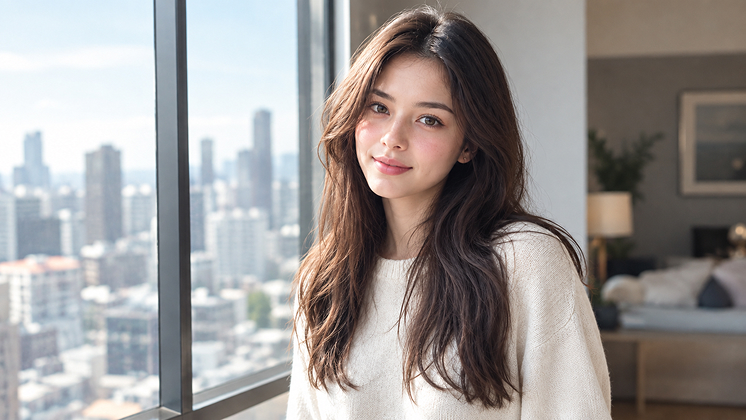
Create a photorealistic portrait of a young woman standing beside a large window in a modern apartment. She is wearing a simple cream-colored sweater, with natural makeup and loose hair. Use soft morning light, realistic skin texture, subtle shadows, and a shallow depth of field. Capture the image as a professional 85mm portrait photograph with a natural, relaxed expression.
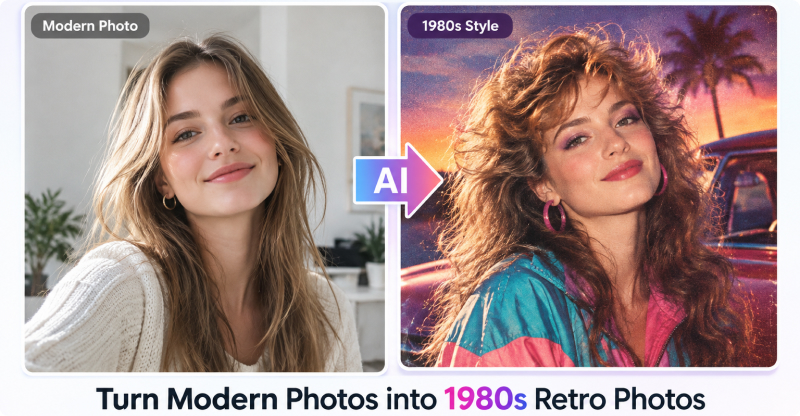
2. 1980s Retro Photo Prompt
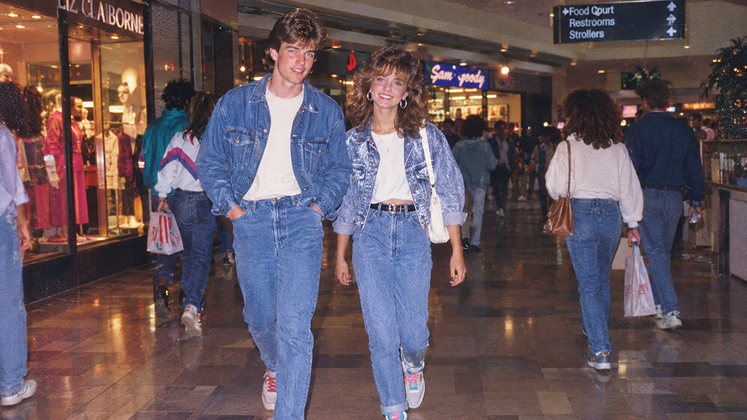
Create a realistic 1980s-style photograph of a young couple walking through a busy American shopping mall. They are wearing authentic 1980s casual clothing, including denim jackets, high-waisted jeans, and colorful sneakers. Use direct on-camera flash, subtle 35mm film grain, slightly faded colors, and a nostalgic snapshot aesthetic. Avoid modern smartphones, contemporary logos, and other objects that did not exist in the 1980s.
3. Cinematic Scene Prompt
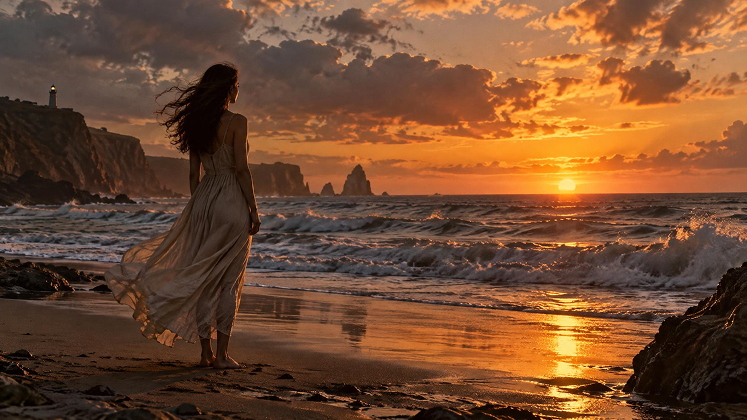
Create a cinematic wide shot of a lone woman standing on a quiet beach at sunset, with ocean waves behind her and wind gently moving her hair and dress. Use warm golden-hour lighting, dramatic clouds, realistic water reflections, atmospheric depth, and a subtle film-grain texture. Compose the scene like a frame from a high-budget drama film.
4. Professional Headshot Prompt

Create a professional corporate headshot of a confident man wearing a dark navy suit and white shirt. Use a clean neutral studio background, soft three-point lighting, realistic skin texture, sharp facial details, and a natural expression. Frame the subject from the chest up with a polished but approachable professional photography style.
5. Product Photography Prompt
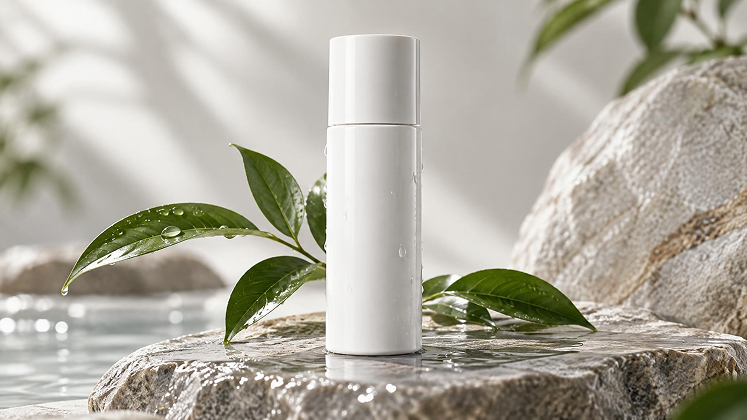
Create a premium studio product photograph of a sleek white skincare bottle placed on a smooth stone surface. Surround it with subtle green leaves and small water droplets. Use soft diffused studio lighting, realistic reflections, gentle shadows, and a clean luxury aesthetic. Keep the product shape and proportions precise, with no extra branding or text.
6. Anime Character Prompt
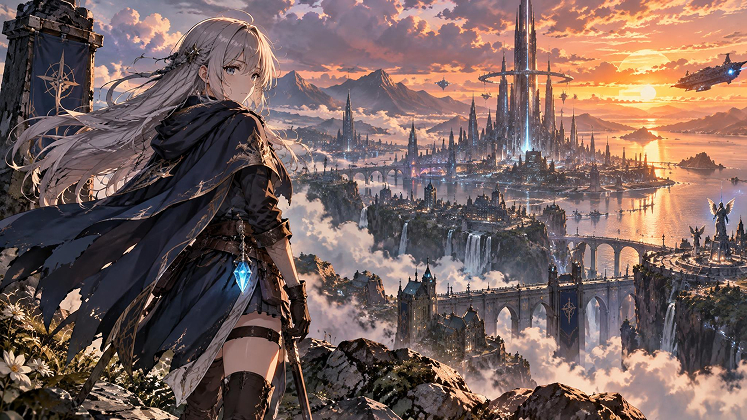
Create a detailed anime-style illustration of a young female adventurer standing on a mountain overlooking a futuristic city. She has long silver hair, a dark blue cloak, and a glowing crystal attached to her belt. Use dramatic sunset lighting, atmospheric clouds, detailed linework, vibrant colors, and a dynamic cinematic composition.
7. Fantasy Character Prompt
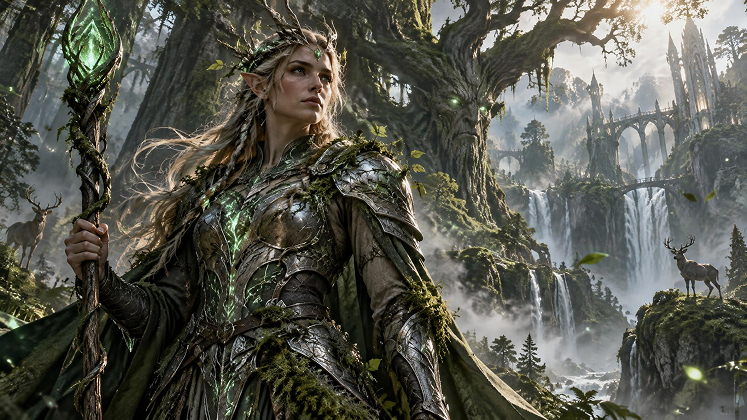
Create a cinematic fantasy portrait of a powerful forest guardian standing among ancient trees. The character wears detailed silver armor covered with subtle moss and glowing green patterns. Surround them with floating particles and soft mist. Use volumetric lighting, realistic textures, dramatic depth, and an epic fantasy-film aesthetic.
8. Travel Photo Prompt
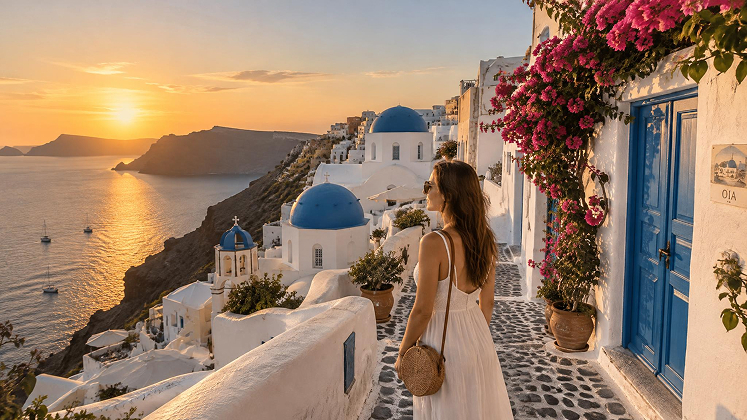
Create a photorealistic travel photograph of a woman standing on a narrow street in Santorini, Greece, surrounded by white buildings with blue doors and flowers. Capture the scene during golden hour with warm sunlight, realistic architectural details, natural colors, and a candid travel-photography aesthetic. Use a wide composition that shows both the person and the surrounding scenery.
9. AI Couple Photo Prompt
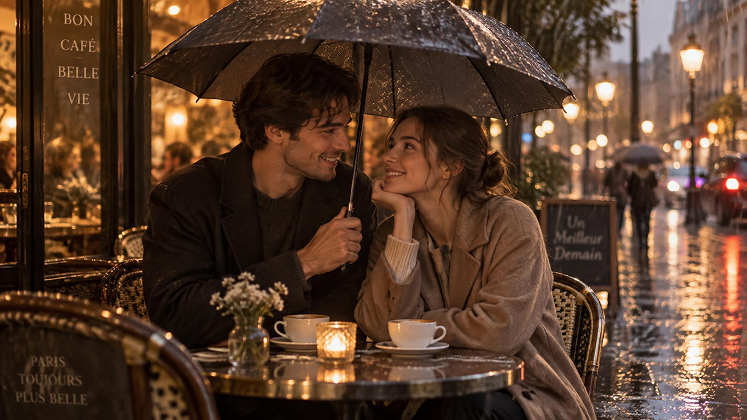
Create a romantic photorealistic photo of a young couple sitting together at a cozy outdoor café on a rainy evening. They are smiling naturally while sharing an umbrella. Use warm café lights, soft reflections on the wet pavement, realistic skin and clothing textures, shallow depth of field, and an intimate cinematic photography style.
10. Social Media Image Prompt
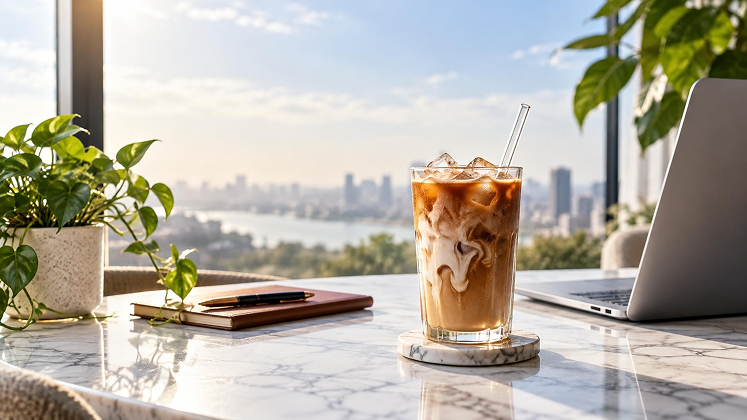
Create a visually striking vertical social media image featuring a stylish iced coffee on a modern marble table beside a laptop and a small green plant. Use bright natural window light, clean composition, realistic shadows, subtle reflections, and a premium lifestyle photography aesthetic. Leave enough clean space near the top for a short social media headline. Do not include any random text or logos.
Part 6. ChatGPT Image 2.5 FAQ
Q1. Is ChatGPT Image 2.5 Free?
Yes. ChatGPT Images 2.5 is available on the free version of ChatGPT, so free users can generate images without subscribing to a paid plan. However, free usage is subject to certain limits. Image generation limits are separate from the limits for regular ChatGPT usage. If you reach the image generation limit, you’ll need to wait for it to reset or upgrade to a paid plan with a higher quota.
For API users, GPT-Image-2.5 Flare and GPT-Image-2.5 Sunburst are separate paid models with dedicated API pricing. As a result, using these API models is different from generating images for free with ChatGPT Images 2.5.
Q2. Is GPT Image 2.5 Better Than GPT Image 2?
Yes. Compared with GPT Image 2, GPT Image 2.5 introduces several improvements, particularly in image editing, subject preservation, and generation speed. GPT Image 2.5 delivers sharper details and follows instructions more intelligently, especially when making multiple rounds of edits.
Q3. Which Version of GPT Is Best for Image Generation?
There isn’t one GPT image model that is best for every workflow. For current OpenAI image generation, the main GPT Image 2.5 choices are GPT Image 2.5 Flare and GPT Image 2.5 Sunburst, and they are designed for different priorities.
| Model | Best suited for | Main advantage |
|---|---|---|
| GPT Image 2.5 Flare | Everyday images, social content, rapid generation | Speed + quality |
| GPT Image 2.5 Sunburst | Detailed creative work, precise editing | Quality + precision |
| GPT Image 2 | Existing workflows | Established image generation and editing |
Q4. What Are Good ChatGPT Prompts for Photos?
A good ChatGPT image-generation prompt should be clear, specific, and descriptive. Instead of using a simple prompt like “Generate a beautiful photo,” start with a basic concept and then add details about the subject, setting, composition, style, lighting, and shadows. You can then fine-tune the generated image through follow-up instructions without having to rewrite the entire prompt.
Q5. Is GPT Image 2.5 available on Vidverse?
Yes. GPT Image 2.5 is currently available on Vidverse for both AI Text to Image and AI Image to Image workflows. Vidverse’s current pages list GPT Image 2.5 as an available image model alongside GPT Image 2.0, Nano Banana 2, Nano Banana Pro, Grok Image 2.0, and Seedream 5.0.
Final Thoughts
So, is GPT Image 2.5 Worth Upgrading To? If your workflow involves frequent image generation, detailed image editing, reference-image preservation, or multiple rounds of revisions, GPT Image 2.5's improvements are particularly relevant. If your existing GPT Image 2 workflow already meets your needs, there may be less reason to change immediately.
Rather than treating the upgrade as simply a newer model number, compare the features that matter most to your workflow—speed, editing accuracy, image consistency, and visual detail—and test the same prompts on both versions when possible.
'%3e%3crect%20y='2.1906'%20width='26'%20height='17.4314'%20rx='1.55981'%20fill='white'/%3e%3c/g%3e%3crect%20x='0.311961'%20y='2.50256'%20width='25.3761'%20height='16.8075'%20rx='1.24784'%20stroke='%2322257C'%20stroke-width='0.623922'/%3e%3c/g%3e%3crect%20x='13.078'%20y='15.5656'%20width='10.8016'%20height='2.49569'%20rx='0.623922'%20fill='%2366B3FF'%20stroke='%2322257C'%20stroke-width='0.623922'/%3e%3crect%20x='-0.311961'%20y='0.311961'%20width='10.8016'%20height='2.49569'%20rx='0.623922'%20transform='matrix(-1%200%200%201%2012.61%2015.2536)'%20fill='%2366B3FF'%20stroke='%2322257C'%20stroke-width='0.623922'/%3e%3crect%20x='10.3093'%20y='13.3231'%20width='4.91339'%20height='6.98013'%20rx='2.45669'%20fill='%2322257C'/%3e%3cpath%20d='M18.9174%200.31543C20.5962%200.268025%2022.1261%200.655527%2023.9487%201.55762C24.0483%201.60695%2024.1137%201.71153%2024.1137%201.8291V16.502C24.1137%2016.7236%2023.8763%2016.891%2023.6499%2016.7979C21.803%2016.0377%2020.2158%2015.6963%2018.4975%2015.7705C16.8915%2015.8399%2015.1907%2016.2732%2013.0776%2017.0332V1.6709C15.4678%200.825877%2017.2746%200.36187%2018.9174%200.31543Z'%20fill='white'%20stroke='%2322257C'%20stroke-width='0.623922'/%3e%3cpath%20d='M15.3008%204.57C16.3536%203.94578%2019.2783%203.20503%2021.8909%203.94608'%20stroke='%2366B3FF'%20stroke-width='0.935883'%20stroke-linecap='round'/%3e%3cpath%20d='M15.3008%207.26054C16.3536%206.63631%2019.2783%205.89557%2021.8909%206.63661'%20stroke='%2366B3FF'%20stroke-width='0.935883'%20stroke-linecap='round'/%3e%3cpath%20d='M15.3008%209.95107C16.3536%209.32684%2019.2783%208.5861%2021.8909%209.32714'%20stroke='%2366B3FF'%20stroke-width='0.935883'%20stroke-linecap='round'/%3e%3cpath%20d='M15.3008%2012.6398C16.3536%2012.0156%2019.2783%2011.2749%2021.8909%2012.0159'%20stroke='%2366B3FF'%20stroke-width='0.935883'%20stroke-linecap='round'/%3e%3cpath%20d='M7.08257%200.31543C5.40384%200.268025%203.87393%200.655527%202.05132%201.55762C1.95165%201.60695%201.88628%201.71153%201.88628%201.8291V16.502C1.88628%2016.7236%202.12373%2016.891%202.35014%2016.7979C4.19702%2016.0377%205.78418%2015.6963%207.50249%2015.7705C9.10852%2015.8399%2010.8093%2016.2732%2012.9224%2017.0332V1.6709C10.5322%200.825877%208.72541%200.36187%207.08257%200.31543Z'%20fill='white'%20stroke='%2322257C'%20stroke-width='0.623922'/%3e%3cpath%20d='M10.6992%204.57C9.64638%203.94578%206.72175%203.20503%204.10907%203.94608'%20stroke='%2366B3FF'%20stroke-width='0.935883'%20stroke-linecap='round'/%3e%3cpath%20d='M10.6992%207.26054C9.64638%206.63631%206.72175%205.89557%204.10907%206.63661'%20stroke='%2366B3FF'%20stroke-width='0.935883'%20stroke-linecap='round'/%3e%3cpath%20d='M10.6992%209.95107C9.64638%209.32684%206.72175%208.5861%204.10907%209.32714'%20stroke='%2366B3FF'%20stroke-width='0.935883'%20stroke-linecap='round'/%3e%3cpath%20d='M10.6992%2012.6398C9.64638%2012.0156%206.72175%2011.2749%204.10907%2012.0159'%20stroke='%2366B3FF'%20stroke-width='0.935883'%20stroke-linecap='round'/%3e%3c/g%3e%3cdefs%3e%3cfilter%20x='0'%20y='2.1906'%20width='26'%20height='17.4314'%20filterUnits='userSpaceOnUse'%20color-interpolation-filters='sRGB'%3e%3cfeFlood%20flood-opacity='0'%20result='BackgroundImageFix'/%3e%3cfeBlend%20mode='normal'%20in='SourceGraphic'%20in2='BackgroundImageFix'%20result='shape'/%3e%3cfeColorMatrix%20in='SourceAlpha'%20type='matrix'%20values='0%200%200%200%200%200%200%200%200%200%200%200%200%200%200%200%200%200%20127%200'%20result='hardAlpha'/%3e%3cfeOffset%20dy='-1.24784'/%3e%3cfeComposite%20in2='hardAlpha'%20operator='arithmetic'%20k2='-1'%20k3='1'/%3e%3cfeColorMatrix%20type='matrix'%20values='0%200%200%200%200.572549%200%200%200%200%200.768627%200%200%200%200%200.976471%200%200%200%201%200'/%3e%3cfeBlend%20mode='normal'%20in2='shape'%20result='effect1_innerShadow_0_4'/%3e%3c/filter%3e%3c/defs%3e%3c/svg%3e)