
What is ChatGPT Text-to-Speech? How can you use ChatGPT to turn text into natural-sounding speech? And how does ChatGPT Voice compare with API-based text-to-speech solutions? In this guide, we’ll explain how ChatGPT Text-to-Speech works, how to use it, and the key differences between ChatGPT Voice and API-based TTS.
Part 1. What Is ChatGPT AI Text-to-Speech (TTS)?
ChatGPT AI Text-to-Speech (TTS) is an AI-powered technology that converts written text into natural-sounding spoken audio, allowing ChatGPT to read its responses aloud and support real-time voice conversations.
In simple terms: Text → AI voice → Spoken response. Unlike traditional TTS tools that mainly turn prepared text into an audio file, ChatGPT Voice is designed for interactive conversations, with support for multiple voices, languages, and adjustable speaking styles.
Is ChatGPT Text-to-Speech Free?
Yes, ChatGPT Text-to-Speech is available for free through ChatGPT Voice, but free users have limited usage. OpenAI currently provides Free users with limited access to GPT-Live-1 mini over a rolling 24-hour period.
ChatGPT Text-to-Speech Pricing
| Plan | Voice / TTS Access |
|---|---|
| Free | Free, with limited daily usage |
| Go / Plus | Paid plans with higher Voice limits |
| Pro | Higher or unlimited Voice access depending on the Pro tier |
| API | Separate usage-based pricing |
Part 2. What Features Does ChatGPT Text-to-Speech Offer?
ChatGPT Text-to-Speech combines natural AI voices, multiple voice options, multilingual support, adjustable speaking styles, and real-time conversations to turn ChatGPT responses into an interactive listening experience.
- Natural-Sounding AI Voices — ChatGPT Voice provides natural, conversational speech with expressive intonation and pacing.
- Multiple Voice Options — Users can choose from voices such as Arbor, Breeze, Cove, Ember, Juniper, Maple, Sol, Spruce, and Vale.
- Multilingual Support — ChatGPT can speak different languages, and users can ask Voice to switch languages during a conversation.
- Adjustable Tone and Speaking Pace — Users can ask ChatGPT to change its tone, speaking speed, or response style to suit different situations.
- Real-Time Voice Conversations — Live can listen and respond at the same time, allowing more natural back-and-forth conversations and interruptions.
- Text and Voice Together — Voice responses appear as text in the chat, so users can listen while following along and review the conversation afterward.
- Interactive Multimodal Experience — Live can work with text and images in the same conversation and, where available, use web search and visual results.
What Can You Use ChatGPT Text-to-Speech For?
ChatGPT AI Text-to-Speech is especially useful for learning, hands-free assistance, language practice, brainstorming, presentations, and consuming information by listening rather than reading.
- Listening to AI-generated answers
- Reading articles and study materials aloud
- Language learning and pronunciation practice
- Voiceovers and narration
- Video content
- Interactive applications
- Accessibility and hands-free interaction
- Presentations and productivity
Part 3. ChatGPT Voice vs. AI Text-to-Speech: What’s the Difference?
Although ChatGPT Voice and AI Text-to-Speech (TTS) both use AI-generated speech, they are designed for different purposes. ChatGPT Voice (Voice Mode) is the user-facing conversational feature, while AI Text-to-Speech is the underlying technology that converts text into spoken audio.
Key Technical & Functional Differences
| Feature | ChatGPT Voice (Voice Mode) | ChatGPT AI Text-to-Speech |
|---|---|---|
| What it is | A voice conversation feature in ChatGPT | Technology that converts text into speech |
| Main purpose | Talk with ChatGPT in real time | Turn written text into spoken audio |
| Interaction | Two-way conversation | Primarily one-way text → audio |
| Input | Voice, text, and supported images | Written text |
| Output | Spoken responses plus on-screen text | Generated speech/audio |
| Voice controls | Multiple voices; tone and pace can be adjusted through prompts | Voice selection, speed, format, and instructions via API |
| Best for | Conversations, brainstorming, learning, hands-free assistance | Voiceovers, narration, apps, websites, and audio generation |
| Developer use | Not primarily designed as an audio-generation API | Available through OpenAI's Audio API |
Which One Should You Use?
- Want to talk with ChatGPT and hear its answers? → ChatGPT Voice
- Want to turn a script, article, or other text into an audio file? → AI Text-to-Speech
- Want to add AI voices to a website, app, or video workflow? → TTS API
Part 4. How to Use ChatGPT Text-to-Speech (Step-by-Step)
You can use ChatGPT’s Voice feature to have ChatGPT read its responses aloud and interact with you through spoken conversation. Here’s how to get started.
Method 1:Use ChatGPT AI Text-to-Speech on Mobile
You can use ChatGPT Voice on both iPhone and Android to have ChatGPT respond with spoken audio. Here’s the step-by-step process.
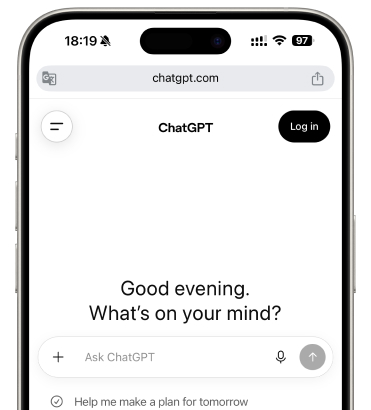
- Install and open the official ChatGPT app on your iPhone or Android and sign in to your account.
- Open a chat and tap the Voice icon in the message bar. If this is your first time using Voice, ChatGPT may ask for permission to access your microphone.
- If prompted, select your preferred voice. You can also change it later by going to Settings → Voice. Current options include voices such as Arbor, Breeze, Cove, Ember, Juniper, Maple, Sol, Spruce, and Vale.
- Once Voice is active, you can speak to ChatGPT or type your request. For example:“Read this text aloud in a clear and natural voice.”
- ChatGPT will respond with spoken audio while the response is also displayed as text.
- You can ask ChatGPT to change its tone, pace, or speaking style. For example, you can ask it to speak more slowly, use a professional tone, or sound more conversational. Precise playback-speed controls aren't currently available.
- If you want to keep listening while using another app or when your phone is locked, enable Settings → Voice → Background conversations.
- Tap the exit control when you're finished. The conversation transcript will remain in your chat history so you can review it later.
Method 2: Use ChatGPT AI Text-to-Speech on the Web
You can use ChatGPT Voice directly in your browser to hear ChatGPT’s responses aloud. Here’s how:
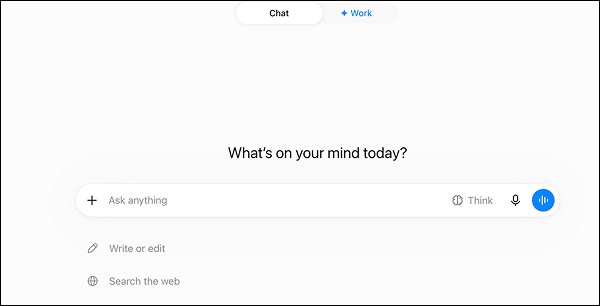
- Open ChatGPT: Go to ChatGPT.com and sign in to your account.
- Click the Voice icon: Select the Voice icon in the prompt window to start a Voice conversation.
- Allow microphone access: If prompted, give your browser permission to access your microphone.
- Choose a voice: If this is your first Voice conversation, select your preferred voice when prompted.
- Enter your text: Type your request in the chat, or speak directly to ChatGPT once Voice is active.
- Listen to the response: ChatGPT will speak its response while displaying the text in the conversation.
- Customize the voice: Ask ChatGPT to change its tone, pace, or speaking style during the conversation.
- End Voice mode: Click the exit control when you want to stop the Voice conversation.
Method 3: Method 3: OpenAI Developer TTS API (Programmatic)
Use this option if you are building an application, narrating scripts, or generating audio files (.mp3, .wav) programmatically.
Python Example:
from pathlib import Path
from openai import OpenAI

# Initialize client (uses OPENAI_API_KEY environment variable)
client = OpenAI()

speech_file_path = Path(__file__).parent / "speech.mp3"

# Request speech audio generation
response = client.audio.speech.create(
    model="tts-1",           # Use "tts-1" for low latency or "tts-1-hd" for high fidelity
    voice="coral",           # Options include alloy, echo, fable, onyx, nova, shimmer, coral, etc.
    input="Welcome to ChatGPT text to speech generation!"
)

# Save output to an MP3 file
response.stream_to_file(speech_file_path)
cURL Command Line Example:
curl https://api.openai.com/v1/audio/speech \
  -H "Authorization: Bearer YOUR_OPENAI_API_KEY" \
  -H "Content-Type: application/json" \
  -d '{
    "model": "tts-1",
    "input": "Welcome to ChatGPT text to speech generation!",
    "voice": "coral"
  }' \
  --output speech.mp3
Part 5. ChatGPT Text-to-Speech Alternatives: Free Tools to Try
If you want to turn text into downloadable MP3s or reusable AI voiceovers, Vidverse AI TTS is a great option. Just note that ChatGPT Voice is not a standalone TTS generator, and its generated voice output can’t be exported as an audio file.
Key Advantages of Vidverse
- Realistic AI voices: Transform your script into realistic voiceovers with a library of 300+ AI voices.
- Customizable delivery: Adjust the tone, emotion, and pacing to better match your content.
- MP3 export: Generate speech that can be exported as an MP3 file for use in videos, podcasts, presentations, and other projects.
- All-in-one creative workflow: Because TTS is integrated into Vidverse's broader AI video, image, and audio platform, you can combine generated voices with other AI-generated content.
How to Use Vidverse AI Text-to-Speech in 3 Easy Steps
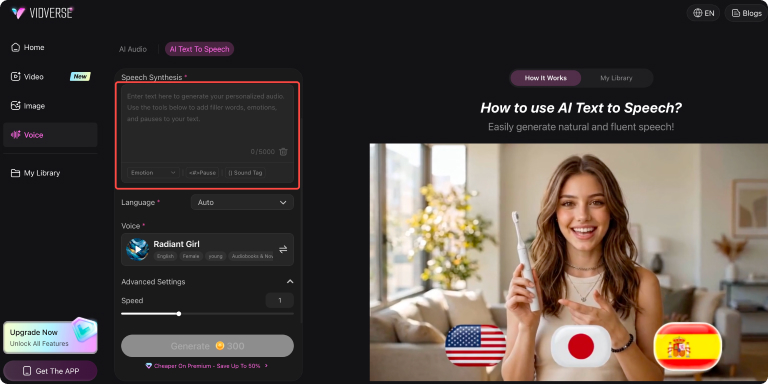
- Step 1.Visit Vidverse AI and sign in to your account, then select the Text-to-Speech feature.
- Step 2.Enter or paste the text you want to convert to speech, then choose an AI voice that fits your content and intended use.
- Step 3.Adjust settings such as tone, emotion, and speaking speed, then click Generate to turn your text into AI voiceover.
Part 6. FAQ About ChatGPT Text-to-Speech
Q1. How much does ChatGPT voice cost?
Yes. Free users can use ChatGPT Voice without a separate Voice subscription, but their usage is limited. If you need substantially more Voice usage, paid plans provide higher allowances.
| ChatGPT plan | Voice access |
|---|---|
| Free | Limited GPT-Live-1 mini usage per rolling 24 hours |
| Go / Plus | Up to 1 hour of GPT-Live-1 Instant + additional mini usage |
| Pro $100/month | Up to 12 hours of GPT-Live-1 Instant and 24 hours of mini usage |
| Pro $200/month | Unlimited GPT-Live-1 access |
| Business | Included allowance; additional usage can use credits |
| Enterprise / Edu / Healthcare | Usage depends on workspace pricing and settings |
ChatGPT Voice pricing is different from the pricing of OpenAI's TTS API, which is billed separately based on API usage.
Q2. How do I talk with ChatGPT voice?
To talk with ChatGPT using Voice Mode, follow the steps for your device:
On the web
- Open ChatGPT.
- Click the Voice icon in the prompt box.
- Allow your browser to access your microphone if prompted.
- Choose a voice if this is your first time using Voice.
- Start speaking—ChatGPT will respond out loud.
On iPhone or Android
- Open the ChatGPT app.
- Tap the Voice icon in the message bar.
- Allow microphone access.
- Choose your preferred voice.
- Start talking.
Q3. Can I convert text-to-speech online?
Yes. With Vidverse AI, you can convert text to realistic AI speech online. It offers customizable voice, tone, emotion, and pacing, making it suitable for videos, podcasts, audiobooks, and other content.
Q4. Why is ChatGPT dictation not working?
If ChatGPT’s microphone/dictation feature isn’t working, the most common causes are microphone permissions, browser or app issues, or temporary transcription problems. ChatGPT Dictation records your speech and converts it into editable text before you send the message. Try these fixes:
- Check microphone permissions: Make sure your browser or ChatGPT app has permission to access your microphone.
- Check your microphone: Test it in another app to make sure the microphone is working.
- Refresh or restart ChatGPT: Reload the webpage or restart the mobile/desktop app.
- Update ChatGPT: Make sure you're using the latest version of the app or browser.
- Check your internet connection: Dictation requires your recording to be sent to OpenAI for transcription.
- Try Voice mode: If you want a live conversation rather than simply converting speech into text, use ChatGPT Voice instead.
Q5. Is there a completely free text-to-speech?
Yes—there are completely free text-to-speech tools, although “free” usually comes with some limits.
- FreeTTS offers a free tier with AI voices, MP3 downloads, and no credit card; its free plan has character limits and is intended for personal/non-commercial use.
- FreeTTS.ai says its core TTS service is 100% free, with up to 10 generations per day without an account and 50 with a free account.
- Sonotxt provides free browser-based TTS with no signup, using on-device voices.
- Vidverse AI also offers free AI creation features, including AI voice generation, with free credits available to new users after signing in.
Conclusion
ChatGPT’s text-to-speech feature lets you listen to responses naturally without needing to read them, making it convenient for multitasking, learning, and hands-free use. You can also interact with ChatGPT by voice, creating a more natural and accessible conversational experience.
If you need more than conversational voice responses, Vidverse AI Text-to-Speech is a good option to try for free if you want to turn a written script into a natural-sounding voiceover online.

'%3e%3crect%20y='2.1906'%20width='26'%20height='17.4314'%20rx='1.55981'%20fill='white'/%3e%3c/g%3e%3crect%20x='0.311961'%20y='2.50256'%20width='25.3761'%20height='16.8075'%20rx='1.24784'%20stroke='%2322257C'%20stroke-width='0.623922'/%3e%3c/g%3e%3crect%20x='13.078'%20y='15.5656'%20width='10.8016'%20height='2.49569'%20rx='0.623922'%20fill='%2366B3FF'%20stroke='%2322257C'%20stroke-width='0.623922'/%3e%3crect%20x='-0.311961'%20y='0.311961'%20width='10.8016'%20height='2.49569'%20rx='0.623922'%20transform='matrix(-1%200%200%201%2012.61%2015.2536)'%20fill='%2366B3FF'%20stroke='%2322257C'%20stroke-width='0.623922'/%3e%3crect%20x='10.3093'%20y='13.3231'%20width='4.91339'%20height='6.98013'%20rx='2.45669'%20fill='%2322257C'/%3e%3cpath%20d='M18.9174%200.31543C20.5962%200.268025%2022.1261%200.655527%2023.9487%201.55762C24.0483%201.60695%2024.1137%201.71153%2024.1137%201.8291V16.502C24.1137%2016.7236%2023.8763%2016.891%2023.6499%2016.7979C21.803%2016.0377%2020.2158%2015.6963%2018.4975%2015.7705C16.8915%2015.8399%2015.1907%2016.2732%2013.0776%2017.0332V1.6709C15.4678%200.825877%2017.2746%200.36187%2018.9174%200.31543Z'%20fill='white'%20stroke='%2322257C'%20stroke-width='0.623922'/%3e%3cpath%20d='M15.3008%204.57C16.3536%203.94578%2019.2783%203.20503%2021.8909%203.94608'%20stroke='%2366B3FF'%20stroke-width='0.935883'%20stroke-linecap='round'/%3e%3cpath%20d='M15.3008%207.26054C16.3536%206.63631%2019.2783%205.89557%2021.8909%206.63661'%20stroke='%2366B3FF'%20stroke-width='0.935883'%20stroke-linecap='round'/%3e%3cpath%20d='M15.3008%209.95107C16.3536%209.32684%2019.2783%208.5861%2021.8909%209.32714'%20stroke='%2366B3FF'%20stroke-width='0.935883'%20stroke-linecap='round'/%3e%3cpath%20d='M15.3008%2012.6398C16.3536%2012.0156%2019.2783%2011.2749%2021.8909%2012.0159'%20stroke='%2366B3FF'%20stroke-width='0.935883'%20stroke-linecap='round'/%3e%3cpath%20d='M7.08257%200.31543C5.40384%200.268025%203.87393%200.655527%202.05132%201.55762C1.95165%201.60695%201.88628%201.71153%201.88628%201.8291V16.502C1.88628%2016.7236%202.12373%2016.891%202.35014%2016.7979C4.19702%2016.0377%205.78418%2015.6963%207.50249%2015.7705C9.10852%2015.8399%2010.8093%2016.2732%2012.9224%2017.0332V1.6709C10.5322%200.825877%208.72541%200.36187%207.08257%200.31543Z'%20fill='white'%20stroke='%2322257C'%20stroke-width='0.623922'/%3e%3cpath%20d='M10.6992%204.57C9.64638%203.94578%206.72175%203.20503%204.10907%203.94608'%20stroke='%2366B3FF'%20stroke-width='0.935883'%20stroke-linecap='round'/%3e%3cpath%20d='M10.6992%207.26054C9.64638%206.63631%206.72175%205.89557%204.10907%206.63661'%20stroke='%2366B3FF'%20stroke-width='0.935883'%20stroke-linecap='round'/%3e%3cpath%20d='M10.6992%209.95107C9.64638%209.32684%206.72175%208.5861%204.10907%209.32714'%20stroke='%2366B3FF'%20stroke-width='0.935883'%20stroke-linecap='round'/%3e%3cpath%20d='M10.6992%2012.6398C9.64638%2012.0156%206.72175%2011.2749%204.10907%2012.0159'%20stroke='%2366B3FF'%20stroke-width='0.935883'%20stroke-linecap='round'/%3e%3c/g%3e%3cdefs%3e%3cfilter%20x='0'%20y='2.1906'%20width='26'%20height='17.4314'%20filterUnits='userSpaceOnUse'%20color-interpolation-filters='sRGB'%3e%3cfeFlood%20flood-opacity='0'%20result='BackgroundImageFix'/%3e%3cfeBlend%20mode='normal'%20in='SourceGraphic'%20in2='BackgroundImageFix'%20result='shape'/%3e%3cfeColorMatrix%20in='SourceAlpha'%20type='matrix'%20values='0%200%200%200%200%200%200%200%200%200%200%200%200%200%200%200%200%200%20127%200'%20result='hardAlpha'/%3e%3cfeOffset%20dy='-1.24784'/%3e%3cfeComposite%20in2='hardAlpha'%20operator='arithmetic'%20k2='-1'%20k3='1'/%3e%3cfeColorMatrix%20type='matrix'%20values='0%200%200%200%200.572549%200%200%200%200%200.768627%200%200%200%200%200.976471%200%200%200%201%200'/%3e%3cfeBlend%20mode='normal'%20in2='shape'%20result='effect1_innerShadow_0_4'/%3e%3c/filter%3e%3c/defs%3e%3c/svg%3e)