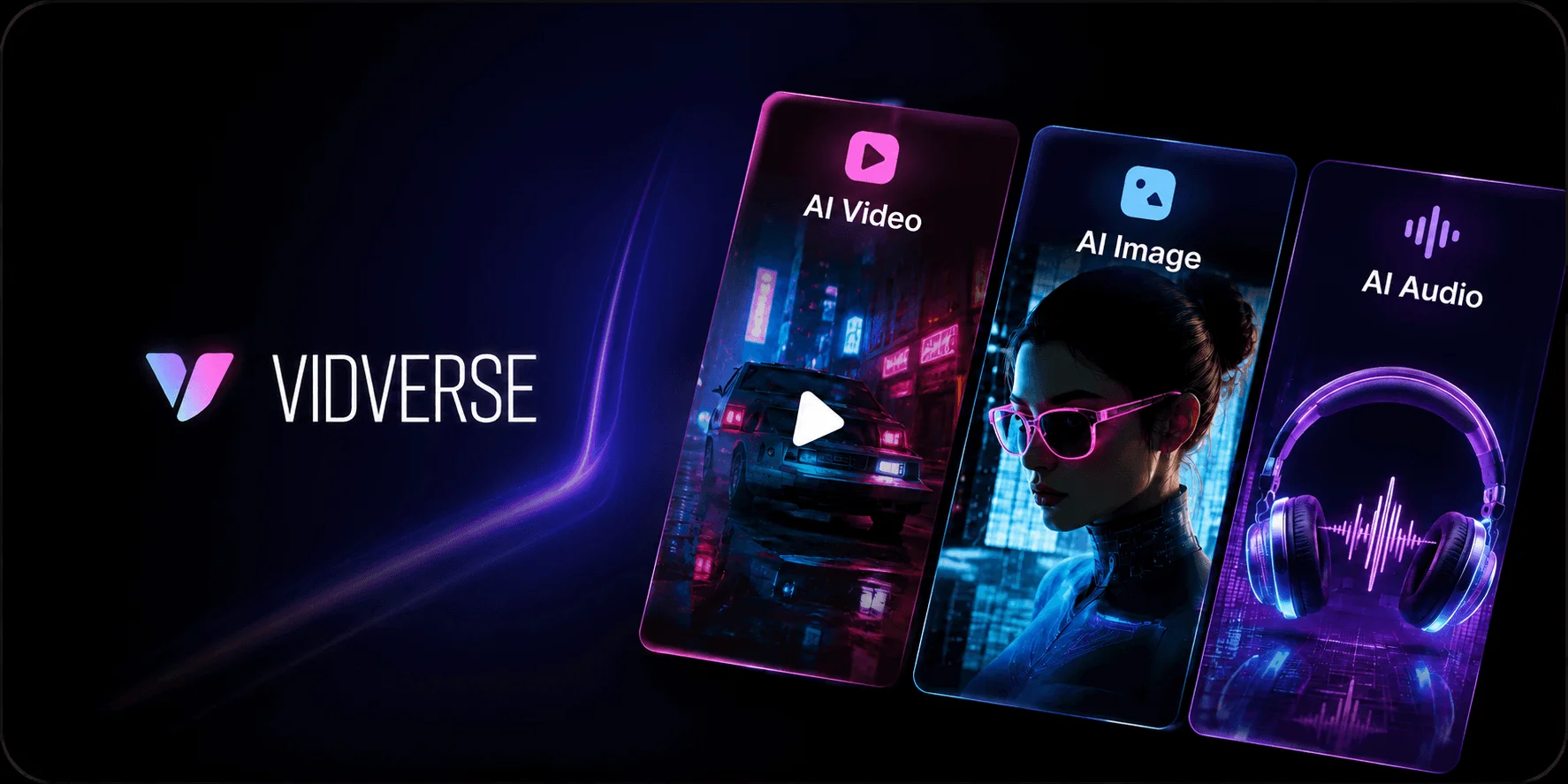

Vidverse AI Image Generator lets you create high-quality images from text prompts or transform existing images with AI. From realistic portraits and AI photos to creative artwork, product visuals, social media content, and AI characters, it makes turning ideas into images simple. This guide covers how to use Vidverse AI Image Generator, along with its key features and use cases.
Part 1. What Is Vidverse AI Image Generator?
Vidverse AI Image Generator lets you create high-quality visuals from text prompts. Turn a simple text prompt into polished AI visuals in seconds—from photorealistic portraits and product images to social media graphics and original characters.
Vidverse also lets you transform and reimagine existing images with AI, making it easy to create or edit visuals with simple prompts—no advanced design or editing skills required.
Vidverse AI Image Generator Features
Vidverse AI Image Generator offers a simple way to create and transform images with AI. Key features include:
- Text-to-Image Generation: Turn simple text prompts into AI photos, illustrations, portraits, product images, and more.
- Image-to-Image Generation: Upload an existing image and use AI to transform, enhance, or reimagine it.
- Multiple Visual Styles: Create realistic photos, cinematic visuals, creative artwork, anime-style images, and other visual styles.
- AI Character Creation: Generate unique AI characters with customizable appearances and styles.
- Creative Image Editing: Modify elements of an existing image using AI without requiring advanced editing skills.
- High-Quality Image Generation: Create detailed visuals suitable for social media, marketing, content creation, and other creative projects.
- Simple AI Workflow: Describe your idea with a prompt, choose your preferred settings, and generate an image without complicated design software.
What AI models does Vidverse Image Generator support?
Vidverse AI Image Generator brings multiple AI image models into one platform, giving users different options for creating and transforming images. Current supported models include GPT Image 2.5, GPT Image 2.0, Nano Banana, Nano Banana Pro, Grok Image 2.0, and Seedream 5.0.
Model availability may vary depending on the specific image-generation tool, region, membership plan, and content policy.
Part 2. Vidverse AI Image Generator vs. Traditional Image Creation
Traditional image creation often requires photography equipment, graphic design software, editing skills, or professional designers. Vidverse AI Image Generator offers a simpler alternative by letting you create or transform images with text prompts and AI.
| Feature | Vidverse AI Image Generator | Traditional Image Creation |
|---|---|---|
| Creation method | Text prompts and AI tools | Photography, drawing, or manual design |
| Skills required | Basic prompting | Design, photography, or editing skills |
| Creation speed | Generate images in a short time | Often requires more time for shooting or editing |
| Editing | AI-assisted transformations | Manual editing with design software |
| Styles | Generate different styles with prompts | Usually requires manual adjustments |
| Cost | Can reduce the need for professional tools or services | May require equipment, software, or professional services |
What Can You Create With Vidverse AI Image Generator?
With Vidverse AI Image Generator, you can turn simple ideas and text prompts into a wide range of visuals. From creating images from scratch to transforming existing visuals, Vidverse AI Image Generator gives you a flexible way to turn creative ideas into images with simple prompts.
- AI Photos: Generate realistic scenes, lifestyle images, and creative photography.
- Realistic Portraits: Create professional headshots, character portraits, and stylized portraits.
- AI Characters: Design original characters with customized appearances, outfits, and visual styles.
- Creative Artwork: Explore anime, fantasy, illustration, cinematic, and other artistic styles.
- Product Images: Create product visuals and promotional images for marketing and e-commerce.
- Social Media Content: Generate eye-catching images for posts, ads, thumbnails, and other social content.
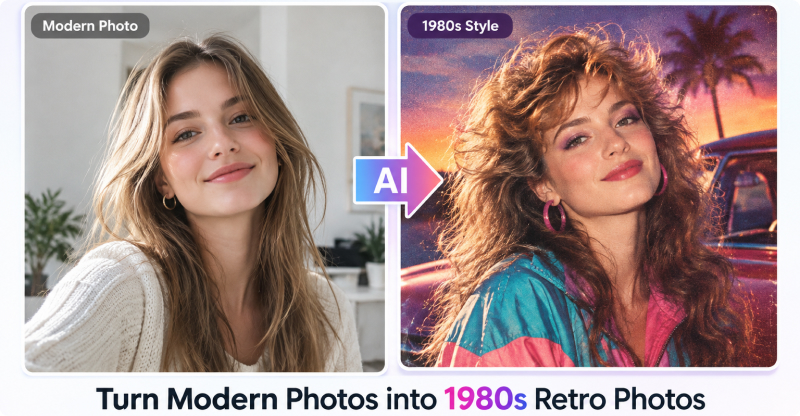
- Image Transformations: Upload an existing image and use AI to reimagine its style, appearance, or composition.
Part 3. How to Turn an Image Into an AI Image with Vidverse AI
Vidverse makes it easy to transform an existing image into a new AI-generated visual. You can upload a photo, describe the changes you want, and let AI reimagine the image while preserving the elements you want to keep.
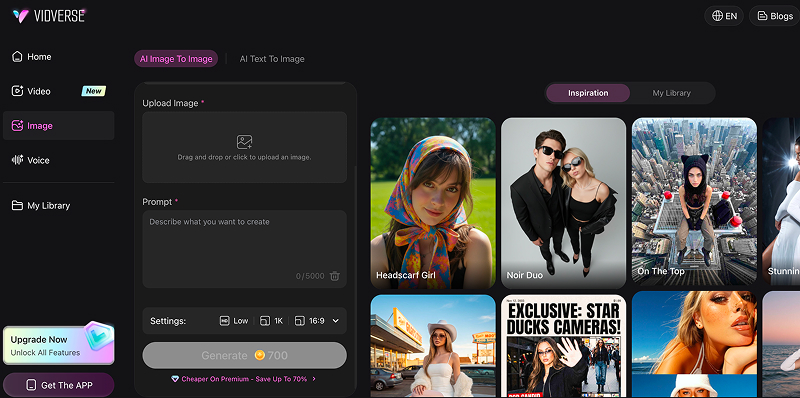
- Step 1.Open Vidverse AI Image Generator and select“AI Image to Image,” or click the AI Image to Image button directly.
- Step 2.Under Model, select the AI image model you want to use.
- Step 3.Upload the photo or image you want to transform. For the best results, use an image with a clear subject and high image quality.
- Step 4.Describe how you want to modify the image. You can specify the style, clothing, background, lighting, composition, colors, and other visual details.
- Step 5.In Setting, choose your preferred output image size and quality. Vidverse will combine your original image with your prompt to generate the transformed image.
- Step 6.Review the generated result and adjust your prompt if needed. Once you're satisfied, save your generated image.
Part 4. How to Generate Images from Text with Vidverse AI
Vidverse AI Image Generator lets you turn text descriptions into AI-generated images without advanced design skills. Follow these steps to create an image from text:
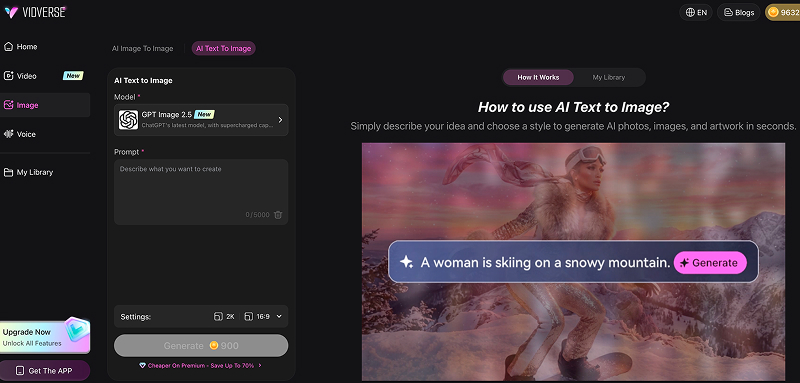
- Step 1.Visit Vidverse AI Image Generator and select the AI Text to Image option.
- Step 2.Select the AI image model you want to use. Different models may offer different visual styles and generation capabilities.
- Step 3.Describe the image you want to create. Include details such as the subject, setting, action, composition, visual style, lighting, and colors for more precise results.
- Step 4.Review your prompt and click Generate. Vidverse will turn your text description into an AI-generated image.
- Step 5.If the result isn't what you expected, adjust your prompt and generate again. Once you're satisfied with the image, download it and use it for your creative project.
Examples of Photos Generated from Text Prompts
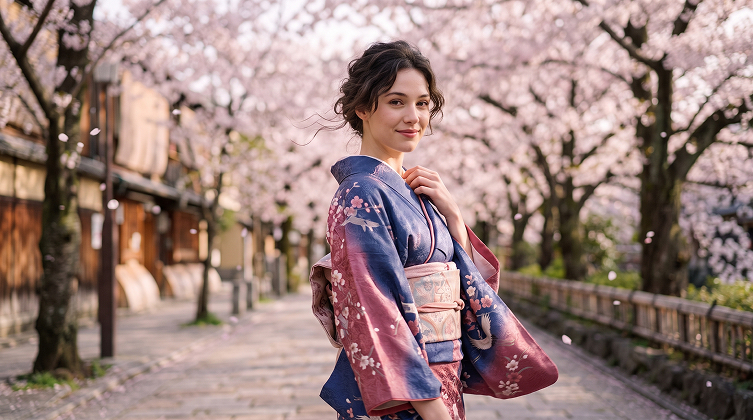
For example, a text prompt:
A beautiful young adult American woman walks through a cherry blossom-lined street in full bloom, wearing a traditional kimono styled in a slightly modern, relaxed way. Her elegant neckline, fair nape, and graceful shoulders are subtly visible. She walks slowly, pauses, gives the camera a shy yet captivating gaze and a gentle smile, then softly adjusts her kimono collar with one hand. Cherry blossom petals drift through the spring breeze, while her hair, sleeves, and kimono hem sway naturally. The camera tracks her from the side and slowly moves closer as she pauses, with soft bokeh cherry blossoms in the background. Soft spring light, delicate pink tones, rich kimono colors, luminous skin, dreamy depth, refined Japanese aesthetics, graceful movement, cinematic composition, photorealistic, ultra-high definition.
Part 5. How to Prompt for Better Image Generation
Writing a clear and detailed prompt can help AI image generators better understand what you want to create. Instead of using a short description like “a woman on a beach,” provide details about the subject, setting, composition, lighting, and visual style.
A Simple AI Image Prompt Formula
Subject + Scene + Action/Pose + Composition + Style + Lighting + Details
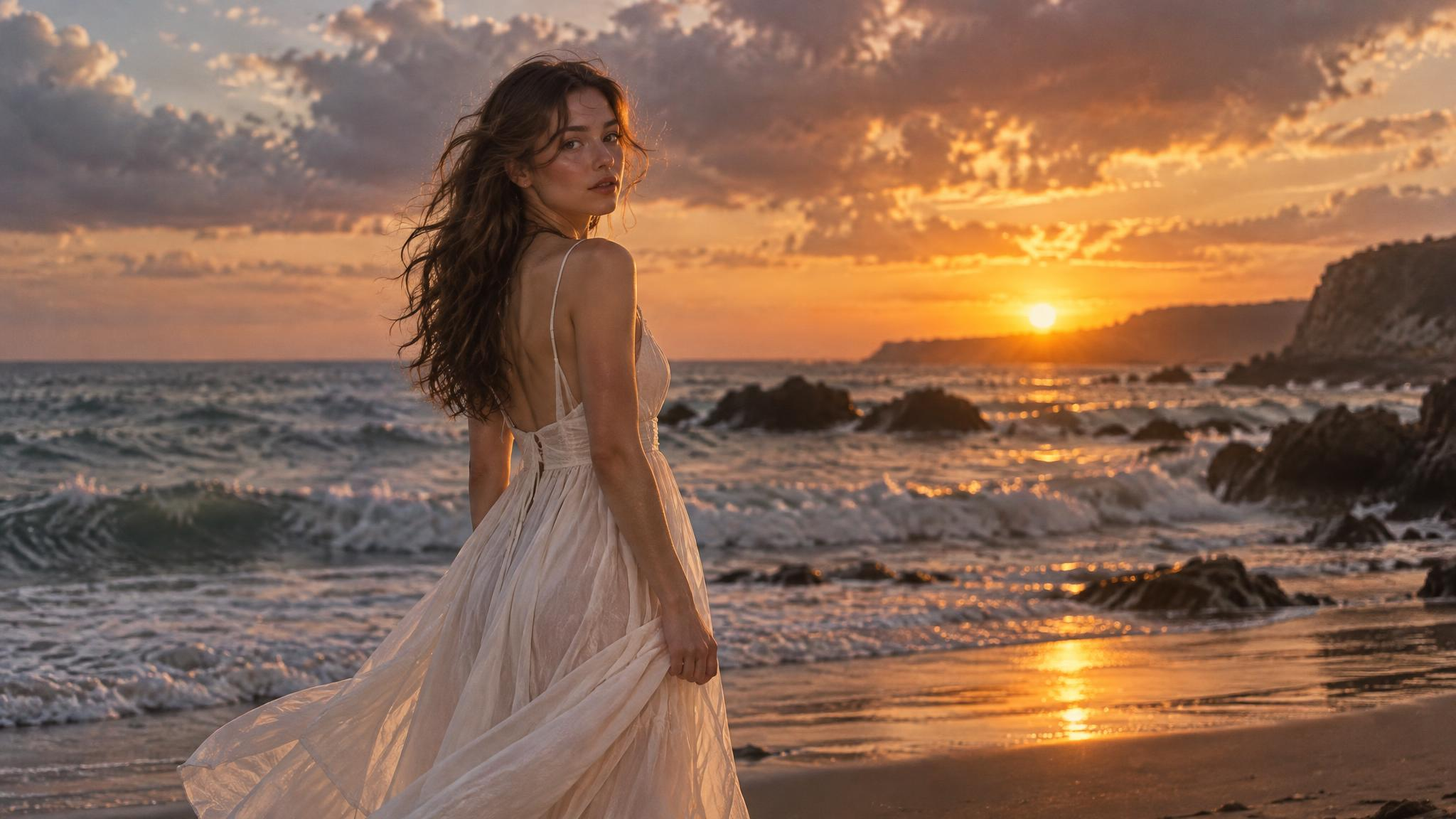
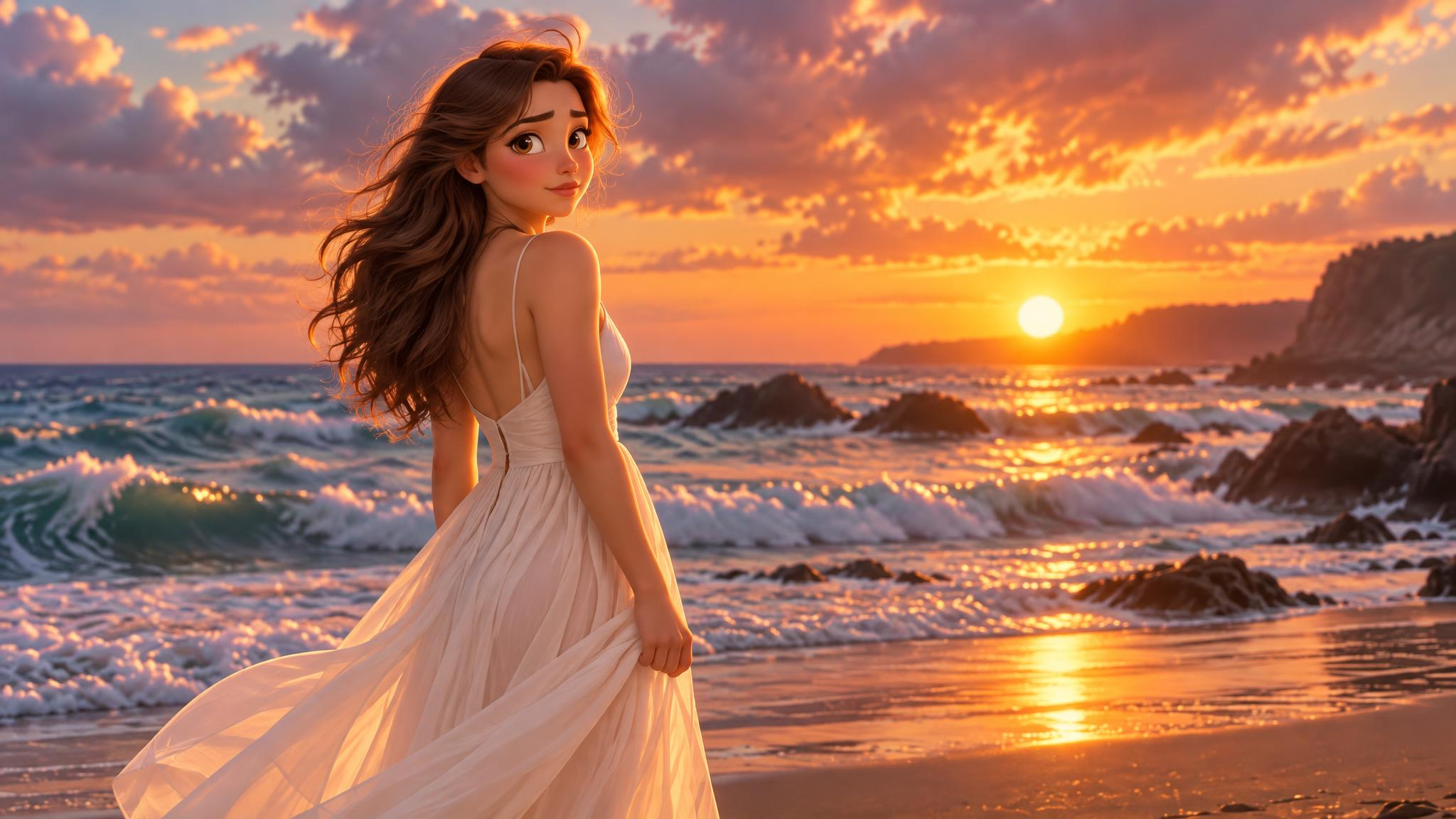
- For example: “A young woman in a flowing white dress standing on a quiet beach at sunset, looking toward the ocean, cinematic wide shot, photorealistic photography, warm golden-hour lighting, dramatic clouds, realistic water reflections, subtle film grain.”
Describe the Main Subject Clearly
Start by explaining who or what should appear in the image. Include relevant details such as appearance, clothing, age, pose, or expression.
- Example: “An elegant young woman wearing a flowing white dress, standing on a quiet beach.”
Add the Scene and Background
Describe where the subject is and what is happening around them.
- Example: “Standing on a quiet beach at sunset, with gentle ocean waves and distant mountains in the background.”
Specify the Visual Style
Tell the AI how you want the image to look, such as photorealistic, cinematic, anime, watercolor, 3D render, or editorial photography.
Describe Lighting and Colors
Lighting can significantly affect the mood and appearance of an AI-generated image. Specify details such as golden-hour lighting, soft studio light, dramatic shadows, neon lighting, or natural daylight.
Include Composition and Camera Details
For more control, describe the framing and camera perspective, such as close-up portrait, medium shot, wide shot, low angle, shallow depth of field, or 35mm photography.
Add Important Details and Constraints
If certain elements must appear or remain unchanged, state them clearly. You can also specify colors, clothing, objects, positions, or other visual requirements.
Part 6. Vidverse AI Image Generator FAQ
Q1. Is Vidverse AI Image Generator free?
Yes, Vidverse AI Image Generator is free to try. New users receive free credits after signing in, which can be used to test AI image-generation features, including text-to-image and image-to-image tools.
Vidverse uses a credit-based system for image and video generation. If you need more generations or want access to additional membership benefits, you can purchase credits or upgrade your plan.
Q2. Can Vidverse generate images from text?
Yes. Vidverse currently supports text-to-image generation: you can describe an idea with a text prompt, choose an available image model/style, and generate an AI photo, artwork, or other visual from the description.
Q3. Can I use my own image with Vidverse?
Yes. You can use your own image with Vidverse AI Image Generator. Upload a photo or other image to the AI Image to Image tool, then describe the changes you want with a text prompt. You can use it to transform, restyle, enhance, or reimagine your existing images.
For example, you can turn a regular portrait into a cinematic photo, change the background or outfit, apply a different visual style, or create a new version of an existing image. For better results, use a clear, high-quality source image and provide specific instructions in your prompt.
Q4. Can I generate AI characters with Vidverse?
Yes. Vidverse can be used to create AI characters for images, stories, and videos. You can describe a character's appearance, style, clothing, personality, and setting with prompts, then use AI-generated or reference images to develop the character further.
Vidverse also supports character-focused video workflows, helping you create characters with consistent visual details, unique styles, voices, personalities, and natural motion.
Q5. What is the best prompt for Vidverse AI Image Generator?
There is no single best prompt for every image. The most effective Vidverse AI Image Generator prompts clearly describe the subject, scene, composition, style, lighting, and important details you want to include.
Q6. Is GPT Image 2.5 available on Vidverse AI?
Yes. GPT Image 2.5 is currently available on Vidverse AI for both AI Text-to-Image and AI Image-to-Image generation. Vidverse lists GPT Image 2.5 as an available model alongside GPT Image 2.0, Nano Banana Pro, Grok Image 2.0, and Seedream 5.0.
Conclusion
Vidverse AI Image Generator lets users turn text ideas and reference images into AI-generated visuals. With multiple models, styles, and image-generation options, it can be used for everything from realistic AI photos and portraits to characters, product visuals, and social media content.
With Vidverse AI Image Generator, you can start with a simple idea and gradually add more visual details to create more precise and engaging AI-generated images.
'%3e%3crect%20y='2.1906'%20width='26'%20height='17.4314'%20rx='1.55981'%20fill='white'/%3e%3c/g%3e%3crect%20x='0.311961'%20y='2.50256'%20width='25.3761'%20height='16.8075'%20rx='1.24784'%20stroke='%2322257C'%20stroke-width='0.623922'/%3e%3c/g%3e%3crect%20x='13.078'%20y='15.5656'%20width='10.8016'%20height='2.49569'%20rx='0.623922'%20fill='%2366B3FF'%20stroke='%2322257C'%20stroke-width='0.623922'/%3e%3crect%20x='-0.311961'%20y='0.311961'%20width='10.8016'%20height='2.49569'%20rx='0.623922'%20transform='matrix(-1%200%200%201%2012.61%2015.2536)'%20fill='%2366B3FF'%20stroke='%2322257C'%20stroke-width='0.623922'/%3e%3crect%20x='10.3093'%20y='13.3231'%20width='4.91339'%20height='6.98013'%20rx='2.45669'%20fill='%2322257C'/%3e%3cpath%20d='M18.9174%200.31543C20.5962%200.268025%2022.1261%200.655527%2023.9487%201.55762C24.0483%201.60695%2024.1137%201.71153%2024.1137%201.8291V16.502C24.1137%2016.7236%2023.8763%2016.891%2023.6499%2016.7979C21.803%2016.0377%2020.2158%2015.6963%2018.4975%2015.7705C16.8915%2015.8399%2015.1907%2016.2732%2013.0776%2017.0332V1.6709C15.4678%200.825877%2017.2746%200.36187%2018.9174%200.31543Z'%20fill='white'%20stroke='%2322257C'%20stroke-width='0.623922'/%3e%3cpath%20d='M15.3008%204.57C16.3536%203.94578%2019.2783%203.20503%2021.8909%203.94608'%20stroke='%2366B3FF'%20stroke-width='0.935883'%20stroke-linecap='round'/%3e%3cpath%20d='M15.3008%207.26054C16.3536%206.63631%2019.2783%205.89557%2021.8909%206.63661'%20stroke='%2366B3FF'%20stroke-width='0.935883'%20stroke-linecap='round'/%3e%3cpath%20d='M15.3008%209.95107C16.3536%209.32684%2019.2783%208.5861%2021.8909%209.32714'%20stroke='%2366B3FF'%20stroke-width='0.935883'%20stroke-linecap='round'/%3e%3cpath%20d='M15.3008%2012.6398C16.3536%2012.0156%2019.2783%2011.2749%2021.8909%2012.0159'%20stroke='%2366B3FF'%20stroke-width='0.935883'%20stroke-linecap='round'/%3e%3cpath%20d='M7.08257%200.31543C5.40384%200.268025%203.87393%200.655527%202.05132%201.55762C1.95165%201.60695%201.88628%201.71153%201.88628%201.8291V16.502C1.88628%2016.7236%202.12373%2016.891%202.35014%2016.7979C4.19702%2016.0377%205.78418%2015.6963%207.50249%2015.7705C9.10852%2015.8399%2010.8093%2016.2732%2012.9224%2017.0332V1.6709C10.5322%200.825877%208.72541%200.36187%207.08257%200.31543Z'%20fill='white'%20stroke='%2322257C'%20stroke-width='0.623922'/%3e%3cpath%20d='M10.6992%204.57C9.64638%203.94578%206.72175%203.20503%204.10907%203.94608'%20stroke='%2366B3FF'%20stroke-width='0.935883'%20stroke-linecap='round'/%3e%3cpath%20d='M10.6992%207.26054C9.64638%206.63631%206.72175%205.89557%204.10907%206.63661'%20stroke='%2366B3FF'%20stroke-width='0.935883'%20stroke-linecap='round'/%3e%3cpath%20d='M10.6992%209.95107C9.64638%209.32684%206.72175%208.5861%204.10907%209.32714'%20stroke='%2366B3FF'%20stroke-width='0.935883'%20stroke-linecap='round'/%3e%3cpath%20d='M10.6992%2012.6398C9.64638%2012.0156%206.72175%2011.2749%204.10907%2012.0159'%20stroke='%2366B3FF'%20stroke-width='0.935883'%20stroke-linecap='round'/%3e%3c/g%3e%3cdefs%3e%3cfilter%20x='0'%20y='2.1906'%20width='26'%20height='17.4314'%20filterUnits='userSpaceOnUse'%20color-interpolation-filters='sRGB'%3e%3cfeFlood%20flood-opacity='0'%20result='BackgroundImageFix'/%3e%3cfeBlend%20mode='normal'%20in='SourceGraphic'%20in2='BackgroundImageFix'%20result='shape'/%3e%3cfeColorMatrix%20in='SourceAlpha'%20type='matrix'%20values='0%200%200%200%200%200%200%200%200%200%200%200%200%200%200%200%200%200%20127%200'%20result='hardAlpha'/%3e%3cfeOffset%20dy='-1.24784'/%3e%3cfeComposite%20in2='hardAlpha'%20operator='arithmetic'%20k2='-1'%20k3='1'/%3e%3cfeColorMatrix%20type='matrix'%20values='0%200%200%200%200.572549%200%200%200%200%200.768627%200%200%200%200%200.976471%200%200%200%201%200'/%3e%3cfeBlend%20mode='normal'%20in2='shape'%20result='effect1_innerShadow_0_4'/%3e%3c/filter%3e%3c/defs%3e%3c/svg%3e)