
Instagram Reels are more than just short videos—they’re a powerful way to showcase your creativity, connect with audience, and increase content visibility. Wondering how to make an Instagram Reel with multiple photos and music as a beginner? Want to learn how to create Instagram videos with AI? Here’s how to use all four methods, step by step!
What Are Instagram Reels?
Instagram Reels are short-form videos on Instagram that let users create and share engaging content using music, effects, text, transitions, and editing tools. They can be shared with followers and discovered by a wider audience through Instagram's Reels tab and Explore page.
Why is Instagram Reels So Popular?
- Reach New Audiences: Reels can be recommended to people who don't follow you, helping your content reach beyond your existing followers.
- Increase Engagement: Music, visual effects, and short storytelling make Reels easy to watch, like, comment on, and share.
- Follow Trends: Trending audio, challenges, and creative formats give users fresh ideas for making content.
- Promote Products and Brands: Businesses can use short videos to showcase products, demonstrate features, and connect with potential customers.
- Create Content Easily: Instagram provides built-in tools for combining clips, adding music, adjusting speed, and creating transitions.
Instagram Reel vs. Story: Which Is Better for Multiple Photos?
Instagram Reels are short videos designed to entertain audiences and reach new people, while Instagram Stories are temporary posts for sharing everyday moments with your followers.
| Feature | Instagram Reels | Instagram Stories |
|---|---|---|
| Main purpose | Entertainment, discovery, and audience growth | Sharing daily moments and updates |
| Content | Short videos with music, effects, and transitions | Photos, videos, text, and interactive stickers |
| Visibility | Can reach followers and non-followers through recommendations | Primarily shown to followers and other eligible viewers |
| Lifespan | Remain on your profile until you remove them | Usually disappear after 24 hours unless saved as Highlights |
| Engagement | Likes, comments, shares, and saves | Replies, reactions, polls, and questions |
| Best for | Tutorials, creative videos, product promotion, and reaching new audiences | Behind-the-scenes content, quick updates, and interactive posts |
Is it better to do a Story or reel on Instagram?
Whether a Story or Reel is better on Instagram depends on your goal. Reels are generally better for reaching new audiences and growing your account, while Stories are better for sharing everyday updates and engaging with existing followers.
- Choose Reels to reach non-followers, showcase products, share tutorials, or create engaging videos with multiple photos and music.
- Choose Stories to share quick updates, behind-the-scenes moments, polls, and casual photos that disappear after 24 hours.
- You can use the same photos for both Instagram Stories and Reels to maximize your content’s reach. Post a Reel to attract new viewers, then share it to your Stories to encourage your followers to watch and engage.
Tips for Making Better Instagram Videos with Multiple Photos
Here are some practical tips for creating more engaging Instagram videos with multiple photos:
- Start with Your Best Photo: Use an eye-catching image to grab viewers' attention immediately.
- Arrange Photos in Story Order: Create a natural flow that tells a clear visual story.
- Add Smooth Transitions: Use simple transitions to connect photos seamlessly.
- Sync Photos with Music: Match photo changes to the rhythm of your soundtrack.
- Keep a Consistent Visual Style: Choose photos with similar colors, lighting, and composition.
- Use the Right Aspect Ratio: Choose 9:16 for full-screen Instagram Reels and Stories.
- Add Text and Captions: Highlight important moments with short, readable text.
- Try AI-Generated Motion: Use AI video tools to animate still photos and create more dynamic content than a traditional slideshow.
Method 1. Create an Instagram Reel with Multiple Photos
You can create an Instagram Reel using multiple photos directly in the Instagram app. Simply select pictures from your camera roll, arrange them in your preferred order, add music, and adjust their timing.
Step 1. Open Instagram and Create a Reel
Open the Instagram app, tap the + (Create) button, and select Reel.
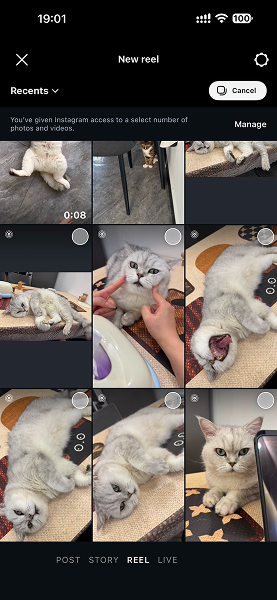
Step 2. Select Multiple Photos
Tap the gallery icon in the bottom-left corner, browse your camera roll, and select the photos you want to include.
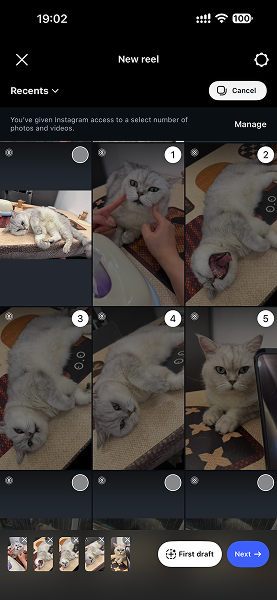
Step 3. Arrange Your Photos
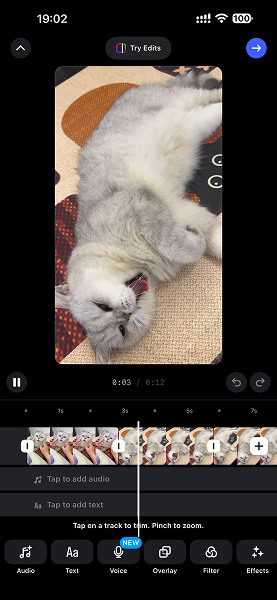
After selecting your photos, tap Next or Edit video. Drag the photo clips along the timeline to change their order.
Step 4. Adjust Photo Duration
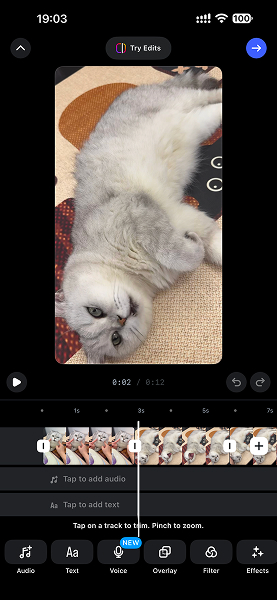
Tap each photo clip and adjust its duration so each image stays on screen for the desired amount of time.
Step 5. Add Music and Effects
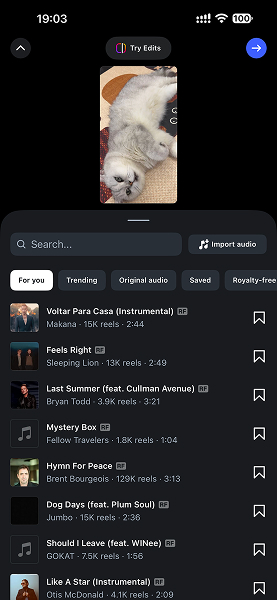
Choose music from Instagram's audio library. You can also add text, stickers, filters, and other effects to make your Reel more engaging.
Step 6. Preview and Share
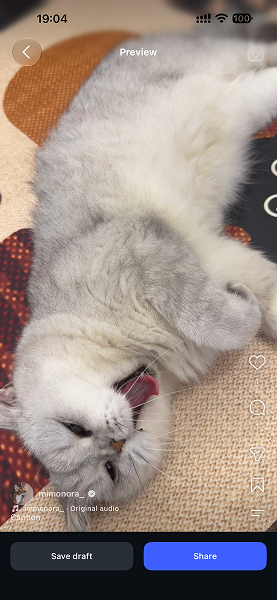
Preview your Reel, choose a cover image, add a caption, and tap Share to publish it.
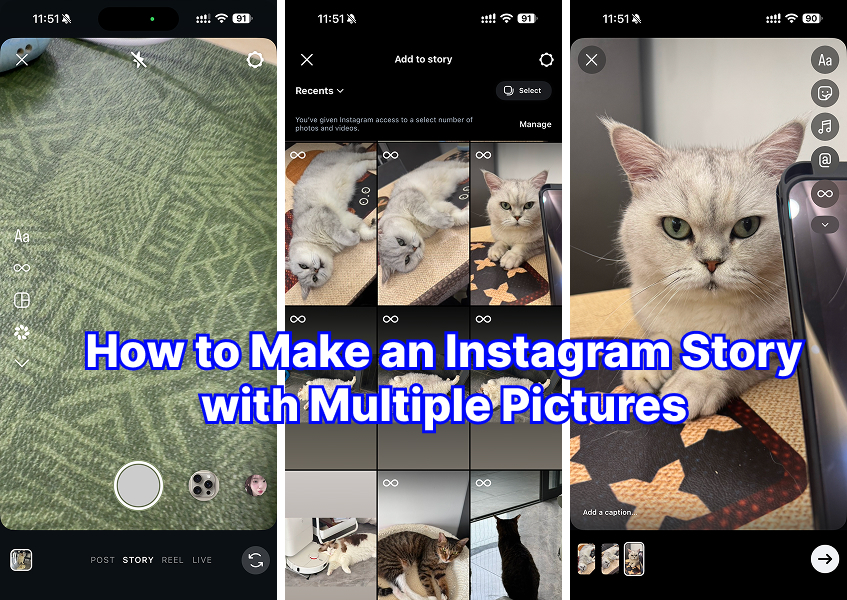
Method 2. Make an Instagram Story with Multiple Photos and Videos
You can add multiple photos and videos to an Instagram Story as separate slides or combine them into a single layout. Instagram's built-in tools make it easy to create a visual sequence without using a separate editing app.
- Step 1.Open Instagram Story: Open Instagram, tap your profile picture with the + icon, or swipe right from your feed to open the Story camera.
- Step 2.Select Multiple Photos and Videos: Tap the gallery thumbnail in the bottom-left corner. If available, tap Select Multiple and choose the photos and videos you want to share.
- Step 3.Arrange Your Content: Select the media in the order you want it to appear. Check the numbered thumbnails or preview to confirm the sequence.
- Step 4.Edit Each Story Slide: Add music, text, stickers, filters, or other effects. You can customize each photo or video separately.
- Step 5.Share Your Story: Tap Your Story to publish the selected photos and videos as a sequence of Story slides.
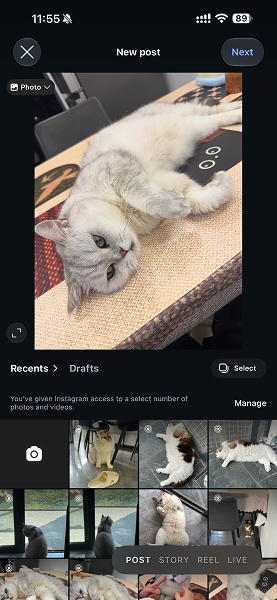
Method 3. Turn Multiple Photos into a Video for an Instagram Feed Post
Want to share several photos as one video on your Instagram feed? You can combine multiple pictures into a video using a video editing app or an online tool, then upload the finished video as an Instagram post.
- Step 1.Choose Your Photos: Select the photos you want to include. Choose high-quality images that fit your theme or tell a clear story.
- Step 2.Combine Photos into a Video: Open a video editing app or online video maker. Import your photos and arrange them in your preferred order on the timeline.
- Step 3.dd Music and Transitions: Add background music, text, animations, or transitions to make your video more engaging.
- Step 4.Adjust Video Settings: Choose a suitable aspect ratio, such as 9:16 for vertical video, and adjust the duration of each photo. Export your video in a format supported by Instagram, such as MP4.
- Step 5.Upload to Instagram: Open Instagram, tap +, select Post, choose your exported video, add a caption and cover image, then tap Share.
Method 4. Create an Instagram Reel with Multiple Photos Using AI
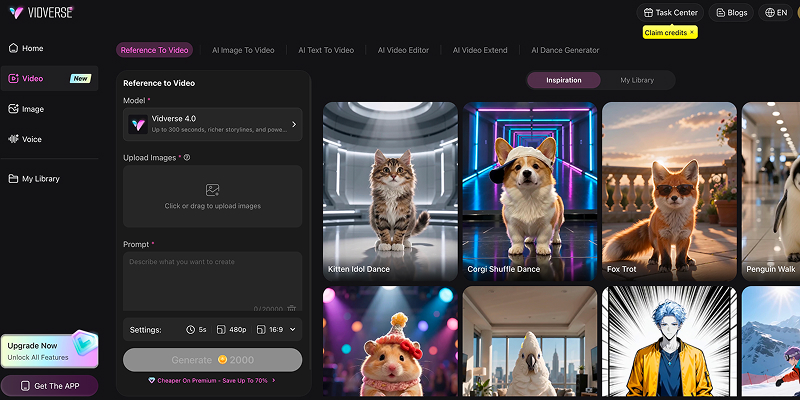
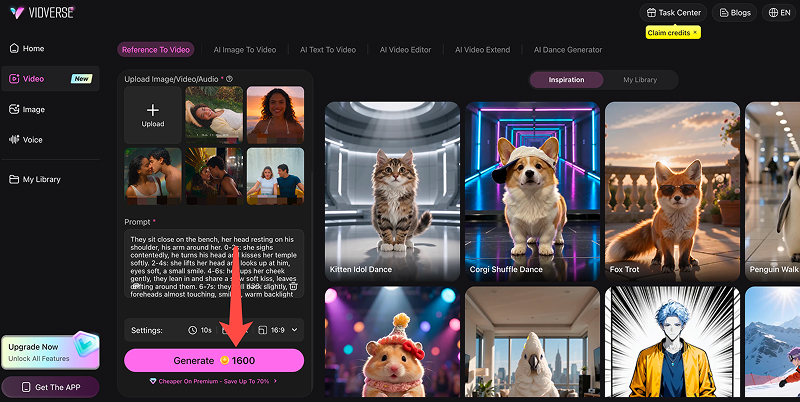
Want to turn multiple photos into a more dynamic Instagram Reel? With Vidverse AI, you can use supported reference-to-video models to transform your photos into AI-generated video scenes with motion, character interactions, and cinematic effects.
Step 1. Open Vidverse AI's Reference-to-Video Tool
Visit Reference-to-Video Tool and select the available video duration, aspect ratio, resolution, and other generation settings. For Instagram Reels, choose a vertical 9:16 format when supported.
Create Instagram Video Using AI
Step 2. Upload Your Photos
Add your reference photos. Choose clear images that show the people, objects, or scenes you want to include in your Reel.
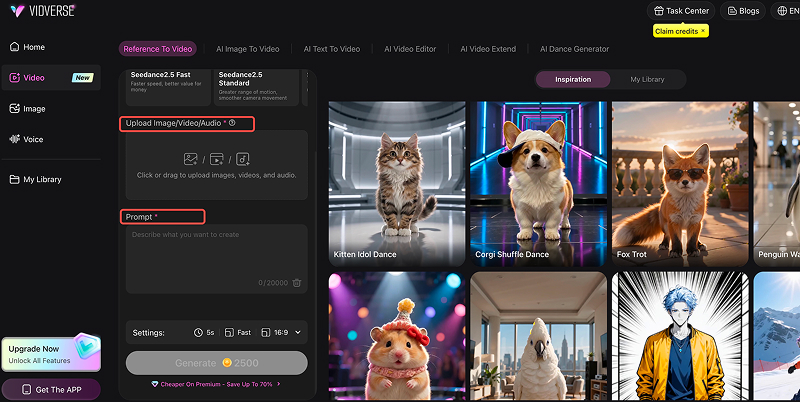
Step 3. Write a Video Prompt
Describe how the subjects should move, interact, and appear in the video. For example:
“A couple walks hand in hand along a beautiful beach at sunset. They smile at each other as gentle ocean waves roll in. Smooth cinematic camera movement, warm golden lighting, and natural body motion.”
Step 4. Generate and Download Your Video
Click Generate, wait for the AI to create your video, then preview and download the result. You can create additional clips if you want a longer Reel.
Step 5. Upload Your Video to Instagram
Open Instagram, create a new Reel, upload your video, add music or captions, choose a cover, and tap Share.
FAQs About Making Instagram Reel with Multiple Photos
Can I make an Instagram Reel with multiple photos?
Yes! You can absolutely create an Instagram Reel using multiple photos. Instagram lets you combine several pictures into a single Reel, turning them into a slideshow-style video with music, transitions, and text.
How do I make a Reel with photos and music?
You can easily make an Instagram Reel with photos and music directly in the Instagram app. Simply select multiple photos, arrange them into a slideshow, and add music to create an engaging Reel. How to Make an Instagram Reel with Photos and Music:
- Open Instagram: Tap the + Create button and select Reel.
- Select Photos: Open your camera roll and choose multiple photos in the order you want them to appear.
- Arrange Your Photos: Adjust the order and display duration of each photo to match your desired pace.
- Add Music: Tap Add Audio to browse Instagram's music library. Choose a song that matches the mood of your Reel.
- Customize Your Reel: Add text, filters, stickers, and transitions to make your video more visually appealing.
- Preview and Share: Watch your Reel to check the timing and music synchronization, then tap Share to publish it.
Can I add both photos and videos to an Instagram Reel?
Yes! You can combine both photos and video clips in a single Instagram Reel. Instagram allows you to select multiple photos and videos from your camera roll, arrange them in one timeline, and edit them together into a seamless Reel. How to Combine Photos and Videos in an Instagram Reel:
- Open Instagram: Tap the + Create button and select Reel.
- Select Photos and Videos: Open your camera roll and choose the photos and video clips you want to include.
- Arrange Your Clips: Put your photos and videos in your preferred order. You can mix static images with video footage to create a more dynamic story.
- Edit Your Reel: Adjust the duration of each photo or video clip, trim videos, and add transitions, text, or stickers.
- Add Music: Choose a soundtrack from Instagram's music library or use original audio.
- Preview and Share: Review your Reel to make sure everything flows smoothly, then tap Share.
How do I put multiple pictures in one Instagram Story?
You can put multiple pictures in one Instagram Story in several ways. You can add multiple photos to a single Story slide using the Photo Sticker feature, or create a multi-photo collage using Instagram's Layout tool.
- Method 1. Use the Photo Sticker Feature: Add multiple photos to a single Instagram Story screen using photo stickers.
- Method 2. Use Instagram Layout: Create a neat photo collage with Instagram’s built-in Layout feature.
- Method 3. Upload Multiple Photos as Separate Story Slides: Share several full-screen photos in sequence, allowing viewers to tap through each one.
- Method 4. Create an AI Video with Vidverse AI: Turn multiple photos into an animated video with smooth transitions, natural motion, and creative effects using AI tools like Vidverse AI.
Can I control how long each photo appears in a Reel?
Yes! You can control how long each photo appears in an Instagram Reel by adjusting the duration of individual photo clips in the Reel editor. This lets you decide how quickly viewers move through your slideshow.
How to Adjust Photo Duration in an Instagram Reel:
- Step 1.Open Instagram, tap + Create, and select Reel.
- Step 2.Select multiple photos from your camera roll.
- Step 3.Tap Edit Video to open the editing timeline.
- Step 4.Select the photo clip you want to adjust.
- Step 5.Drag the clip's edges or adjust its duration using the available editing controls.
- Step 6.Repeat for other photos until the timing feels right.
- Step 7.Preview your Reel and share it when you're happy with the result.
Can I turn multiple photos into an Instagram video for free?
Can I turn multiple photos into an Instagram video for free?
Yes! You can turn multiple photos into an Instagram video for free using Instagram's built-in Reels editor or free online video editing tools. You don't need expensive editing software to create a photo slideshow with music, transitions, and effects.
- Method 1: Use Instagram Reels for Free
- Method 2: Use Free Online Video Editors
- Method 3: Use AI to Create Animated Photo Videos
Can AI turn multiple photos into a video for Instagram?
Yes! AI can turn multiple photos into a dynamic Instagram video without requiring you to record any footage. Instead of simply displaying pictures as a slideshow, AI can animate your photos, generate realistic movements, and create smooth transitions between scenes.
There are three common ways to turn photos into videos with AI:
- Image-to-Video: Upload a photo and let AI bring it to life with realistic motion, camera movements such as zooming and panning, and other visual effects.
- Reference-to-Video: Upload multiple photos as visual references, allowing AI to generate a cohesive video with connected scenes, consistent characters, and a unified visual style.
- AI Photo Slideshow: Combine multiple photos with AI-generated transitions, music, and visual effects to create a polished slideshow video.
Can I turn multiple photos into a video without downloading software?
Yes! You can turn multiple photos into a video without downloading or installing any software. Many online video editors and AI video generators work directly in your web browser, so you can upload photos, edit your video, and export it online.
Can You Turn Multiple Photos into a Video Without Writing Prompts?
Yes! You can turn multiple photos into a video without writing any AI prompts. Many online video tools offer ready-made templates, preset animations, and automatic transitions, allowing you to create videos simply by uploading your pictures and choosing a style.
3 Ways to Turn Multiple Photos into a Video Without Prompts:
- Use Ready-Made AI Video Templates: Simply upload your photos, choose a template, and let AI generate a video with preset movements, transitions, and effects.
- Use an Automatic Photo Slideshow Maker: Upload multiple photos and let the tool arrange them into a slideshow with automatic transitions, music, and visual effects.
- Use Instagram’s Built-In Templates: Instagram Reels offers ready-made templates that let you replace placeholder clips with your own photos or videos, creating a Reel with preset timing, transitions, and music.
Conclusion
The biggest advantage of an online AI video generator is that you can turn ordinary photos into dynamic Instagram videos without installing complicated editing software. Want to turn multiple photos into a Reel with music? Give Vidverse AI a try!