
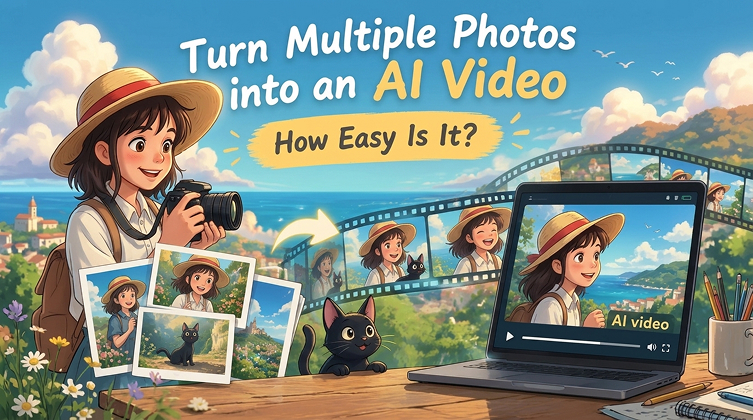
How do I turn multiple images into a video? Some AI models can use multiple images to guide the generation of a cohesive video, while others support only a single starting image. Here, we’ll show you how to create a video from multiple images with this easy step-by-step guide.
Part 1. What Is AI Video Generation from Multiple Photos?
AI Video Generator's Reference-to-Video feature lets you turn multiple images into an AI video with realistic motion, smooth transitions, and engaging visual effects. With Reference to Video features, you can transform photos into cinematic clips, romantic videos, product showcases, or social media content without advanced video editing skills.
What Is Reference to Video AI?
Reference-to-Video AI is an AI video generation technology that uses multiple reference images to guide the creation of a video. Instead of relying on a single starting image, users can provide photos of characters, objects, or scenes to help the AI generate video content that follows their visual references and text prompts.
How AI Turns Multiple Images into a Video
AI reference to video tools analyze your uploaded images to identify subjects, visual details, and relationships between images. Depending on the model, they use these references to generate motion, connect scenes, and create a video that matches your prompt.
The process typically involves three steps:
- Analyze the images: AI identifies people, objects, backgrounds, and visual features in each photo.
- Generate motion and transitions: The model creates movement, animates subjects, or connects scenes based on the reference images and your prompt.
- Render the video: AI generates the video frames and combines them into a continuous clip.
Part 2. Turn Multiple Photos into an AI Video with Vidverse AI
A Reference-to-Video AI feature lets users upload multiple photos that guide an AI model in generating a video with desired characters, objects, visual styles, or scenes. Unlike basic Image-to-Video, which typically animates a single starting image, Reference-to-Video uses multiple visual references to provide richer guidance for video generation.
What Are the Features of Vidverse AI's Reference to Video?
- Multiple Reference Images:Use multiple images to guide video generation, combining character appearances, objects, and visual settings to create a more cohesive result.
- Character and Visual Consistency:Use reference images to help preserve recognizable character features, clothing, products, and visual styles throughout a generated video.
- Multimodal Reference Support:Some supported models accept more than images, including reference videos and audio clips. These inputs can help guide motion, scene details, or sound, depending on the model's capabilities.
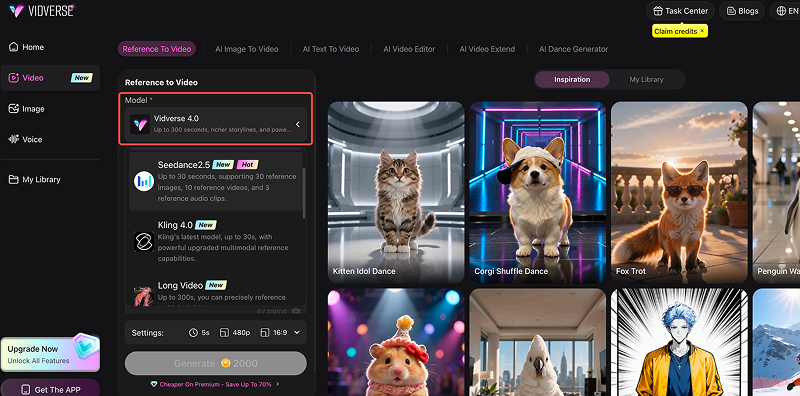
- Longer Video Generation:Vidverse offers models designed for longer outputs, including Vidverse 4.0 and Long Video, which list support for videos of up to 300 seconds on the Reference to Video page.
What Can You Create with Reference-to-Video AI?
- Reference-to-Video AI lets you turn multiple photos into dynamic videos for storytelling, marketing, and creative projects.
- Cinematic Stories: Create connected scenes with consistent visual details.
- Romantic Videos: Animate couples or characters in creative scenarios.
- Product Videos: Showcase products from different angles or settings.
- Character Animations: Use character references to guide appearance and style in animated scenes.
- Social Media Videos: Create eye-catching short videos for TikTok, Instagram Reels, and YouTube Shorts.
- Creative Visual Effects: Experiment with anime-inspired scenes, artistic transformations, and imaginative visual concepts.
Part 3. How to Make an AI Video from Multiple Photos with Vidverse?
With Vidverse AI's Reference to Video feature, you can turn multiple photos into an AI-generated video by combining reference images with a text prompt. Follow these simple steps to bring your ideas to life.
Create Videos from Multiple Images
How to Generate Video from Multiple Images
Step 1: Choose an AI Video Model or Template
Open Vidverse AI's Reference-to-Video tool and select the available video model, duration, aspect ratio, or other generation settings to match your project. Options may vary depending on the model.
Step 2: Upload Your Photos
Upload the photos you want to use as visual references. Choose clear images that match your intended characters, objects, or scenes.
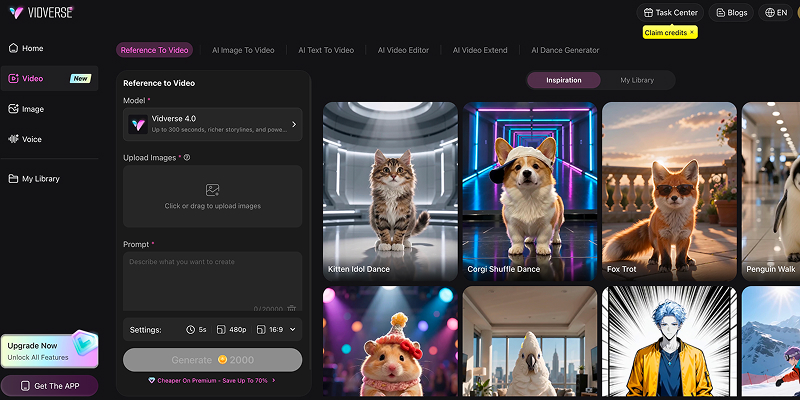
Step 3: Describe the Motion or Scene
Describe the actions, movements, camera angles, and visual style you want. For example: “A young couple walks along a beach at sunset, holding hands as gentle waves roll in. Warm cinematic lighting, natural movements, and a slow camera push-in.”
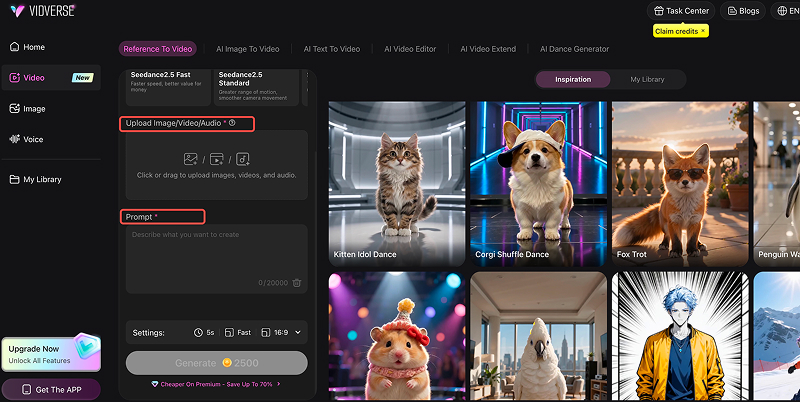
Step 4: Generate and Preview Your Video
Click Generate to create your video from the reference photos and prompt. Wait for the AI to process your request.
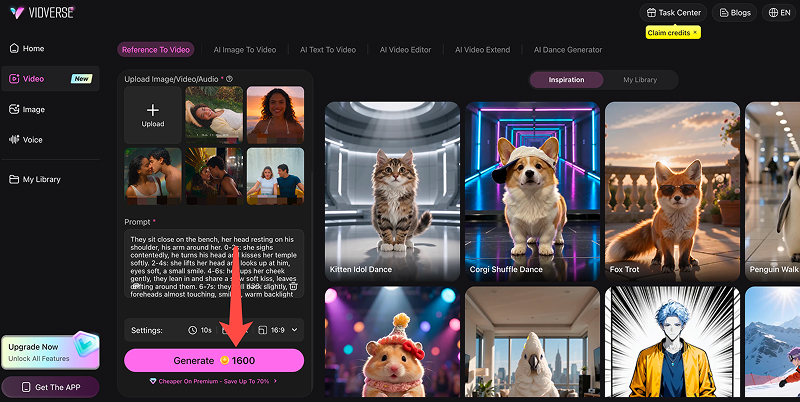
Step 5: Download and Share Your Creation
Review the generated video to check its motion, visual consistency, and overall quality. If needed, adjust your prompt or reference images and generate another version. Download your favorite result when you're satisfied.
Multiple Photos vs. a Single Image: What's the Difference?
The main difference between using multiple photos and a single image for AI video generation is how much visual information you can provide to guide the video.
- Multiple photos to video: Multiple reference images can help guide character appearance, different angles, poses, or scenes, making them useful for storytelling, product showcases, and character-based videos. Results depend on whether the AI model supports multiple reference images.
- Single image to video: One image serves as the starting frame, and AI animates it with movement, camera effects, or environmental changes. This is ideal for animating portraits, product photos, artwork, or landscape images.
Which should you choose?
Use multiple photos when you want to guide a video with several visual references. Choose a single image when you want to animate one photo quickly and simply.
Part 4. What's the Difference Between Reference-to-Video and Image-to-Video?
Reference-to-Video and Image-to-Video differ primarily in how input media controls the output video: Image-to-Video uses a static image as the exact starting frame, whereas Reference-to-Video uses visual assets as background context or identity guides without locking the initial frame.
Key Technical Differences
| Feature / Aspect | Reference to Video | Image to Video |
|---|---|---|
| First Frame Constraint | Flexible. The output can start from any angle, scene, or frame composition. | Strictly locked. Frame 0 of the generated video is identical to the input image. |
| Input Role | The images act as style, character, lighting, or asset references for context. | The image acts as the literal canvas that is animated or brought to life. |
| Subject Consistency | Superior identity preservation across multiple shots, camera angles, and movements. | High for initial motion, but subject features can drift as camera moves away. |
| Input Quantity | Accepts multiple reference images (e.g., character turnarounds, style sheets). | Typically 1 seed image (or a starting and ending frame pair). |
| Primary Use Case | Storyboarding, visual storytelling, and keeping characters/products consistent across scenes. | Bringing a specific static photo, drawing, or portrait to life with subtle motion. |
Which One Should You Choose?
- Use Image-to-Video if: You have an exact picture you love and simply want to add motion (e.g., parallax depth, flowing water, hair blowing in the wind, subtle camera pans).
- Use Reference-to-Video if: You want to guide video generation with multiple photos, such as maintaining a character's appearance or incorporating different visual references into a scene.
- Tips: Both approaches can turn static images into dynamic videos, but the best choice depends on your creative goal and the capabilities of the selected AI model.
Part 5. Tips for Getting Better Results
Here are actionable tips for achieving better, more consistent results when generating video from reference images (spanning both Image-to-Video and Reference-to-Video workflows):
1. Optimize Your Source Reference Imagery
- Start with High-Resolution, Clean Inputs: Ensure your reference images are sharp, well-lit, and free of compression artifacts. Low-resolution inputs force the video model to hallucinate missing texture data, leading to flickering or distorted motion.
- Match Aspect Ratios: Generate your reference images in the exact same aspect ratio (e.g., 16:9, 9:16) as your target video. Cropping or stretching mismatched dimensions forces the model to fill in awkward gaps during animation.
- Isolate Subjects: If you are using character or object references, ensure the background is clean or neutral so the model clearly isolates the primary asset rather than animating background noise.
2. Write Action-Oriented, Motion-Specific Prompts
- Describe the Motion, Not the Scene: Since the reference already establishes the subject and background, keep your text prompt focused entirely on what changes. Use verbs like drifts, flows, rotates, strides, or pans.
- Specify Camera Movement: Explicitly state how the camera behaves (e.g., slow cinematic push-in, orbital drone shot, steady tracking shot) to prevent unwanted, erratic camera jumps.
- Avoid Redundant Descriptions: Don't waste prompt tokens re-describing what is already visible in the reference image; instead, focus on lighting shifts, weather changes, or physical interactions.
3. Control Temporal Consistency and Drift
- Keep Prompts Concise: Over-prompting video models can confuse them, causing the subject to mutate or drift away from the reference frame over time.
- Use Seed Locking: If your platform allows it, lock your random seed once you find an aesthetic or motion style you like, then tweak only the prompt or camera parameters for subsequent runs.
- Keep Clips Short: Generate in short bursts (typically 3 to 5 seconds per clip). If you need a longer sequence, use downstream interpolation or chain clips together using end-frame to start-frame techniques.
4. Manage Lighting and Atmosphere Transitions
- Bridge Style and Movement: If changing the lighting in your video prompt (e.g., from day to sunset), ensure the prompt explicitly bridges the transition so the model doesn't abruptly flash or distort the source lighting geometry.
- Leverage Style Anchors: When using multi-image reference workflows (R2V), supply reference sheets that show the character or product under different lighting angles so the model has a consistent structural blueprint to follow.
Part 6. FAQs About AI Multiple Image to Video Generators
Can ChatGPT Turn a Photo into a Video?
Yes, ChatGPT can help you turn a photo into a video if video generation is available in your account. Upload an image, describe the motion or scene you want, and use a supported video generation feature to create a clip. Availability depends on your ChatGPT plan and the tools currently offered in your account.
If you want to animate a photo with more control over camera movement, character actions, or visual style, an AI image-to-video generator like Vidverse AI is another option. Upload your photo, enter a prompt describing the desired motion, and generate a video online.
Can I Make an AI Kissing Video for Free?
Yes, you can make an AI kissing video for free with an AI video generator that offers free credits or a free plan. Upload one or two photos, choose a suitable image-to-video or reference-to-video model, and describe the kissing motion in your prompt. Some tools also offer ready-made templates to simplify the process.
How Many Photos Can I Use to Generate One Video?
It depends on the AI model. Some models support only one image, while others allow multiple reference photos. Check your selected model's image limit before generating.
Can I Combine Photos of Different People?
Yes. If your AI video model supports multiple reference images, you can upload photos of different people and describe how they should interact in the video. Use clear photos and specific prompts for better results.
How Long Does It Take to Generate a Video?
Most AI videos take a few minutes to generate. Processing time depends on the AI model, video length, resolution, and platform traffic.
Can I Control the Order and Movement of the Photos?
Yes. You can use prompts to describe the sequence of scenes, subject actions, and camera movements. The level of control depends on the AI model you choose.
Why Do Some AI Videos Look Inconsistent Between Photos?
AI videos often look inconsistent—exhibiting sudden morphing, shifting facial features, texture popping, or background warping—because most current video generation models struggle with persistent 3D geometry and temporal stability. Use clear, visually consistent photos and specific prompts to improve the results.
Can I Turn Multiple Photos into a Video Without Downloading Software?
Yes. Online AI video generators like Vidverse AI let you upload multiple photos, enter a prompt, and generate videos directly in your browser without installing software.
Can You Turn Multiple Photos into a Video Without Writing Prompts?
Yes. Some AI video generators offer ready-made templates. Simply upload your photos, choose a template, and generate a video without writing prompts. While skipping prompts is fast and effortless, you sacrifice creative control:
- Unpredictable Motion: Without a prompt to specify how things move (e.g., "zoom slowly into the foreground" or "make the water ripple"), the AI relies on default algorithms, which can sometimes result in awkward, generic, or unnatural shifts.
- Lack of Narrative Context: The AI has no way of knowing why the photos are grouped together, meaning transitions are purely based on visual geometry rather than a story.
Conclusion
Unlike traditional photo slideshows, AI Reference-to-Video lets you convert multiple photos into one dynamic video while maintaining character consistency, bringing static images to life with natural movements and connecting visual elements into more dynamic scenes. Want to turn multiple images into a video? Try the Vidverse AI Video Generator today.